Assistant Workspace and Saved Work
Activate the workspace, maintain business context, reopen chats, and keep pinned or shared Assistant work available.
Summary
The Assistant includes more than the main conversation. Its operating pages help you complete workspace activation, maintain business context, reopen recent chats, keep reproducible answers, manage shared canvases, and define collections policies.
Use these pages to make the Assistant useful across many reviews instead of treating each chat as an isolated answer.
Assistant Operating Pages
The Assistant area includes:
| Page | Primary job |
|---|---|
| Workspace activation | Complete the live setup path and start suggested Assistant actions. |
| What I know about your business | Store stable business facts that Assistant can use as context. |
| Recent chats | Reopen or remove prior Assistant conversations. |
| Pinned answers | Keep frozen copies of answers that need to remain reproducible. |
| My canvases | Search pinned answers and active shared canvases in one gallery. |
| Collections Autopilot | Define an approved collections stance under the team Autopilot gate. |
Goals, Watchers, Scheduled runs, Action Bundles, Decisions, Autopilot, and the audit are documented under Assistant Automation.
Capabilities
You can activate your workspace via a guided checklist, store and update reusable business facts, access and manage recent Assistant conversations, save and organize key answers, publish or revoke shared canvases, and set team collection rules for automated workflows. Each feature helps retain knowledge, guide teams, and ensure efficient repeatable reviews.
Prerequisites
Workspace access is required to use the Assistant operating pages. Some features depend on the correct workspace context, and permission controls apply to workspace-only records and collections policies. Enabling policies or sharing canvases may require owner or admin roles. Ensure that workspace activation and relevant configuration are complete before you manage advanced Assistant settings.
Concepts
Choose the Right Saved Surface
| Need | Use |
|---|---|
| Continue a conversation | Recent chats |
| Keep an exact answer | Pinned answers |
| Find pins and shares together | My canvases |
| Publish a live Assistant canvas | Share from the canvas, then manage it under My canvases |
| Keep a stable business fact | What I know about your business |
| Keep a planning assumption | The related forecast or scenario-planning model |
Do not use a chat title or pinned summary as the source of record for an invoice, transaction, customer field, or model input.
Workflow
Complete Workspace Activation
Workspace activation shows the same live activation path used by the activation hub. The checklist reflects the workspace's current state instead of a separate completion record.
- Open Assistant → Workspace activation.
- Review the incomplete steps.
- Complete a manual step in the linked product area, or select an Assistant action when one is available.
- Return to the activation page.
- Confirm that the related step now shows complete.
An Assistant action selected from activation opens the main Assistant with the prompt prepared. Review the prompt and the resulting action before you approve consequential work.
Maintain the Business Profile
Open Assistant → What I know about your business to store facts that should remain useful across many conversations:
- Industry
- Fiscal year starts
- Base currency
- Primary goals
- Focus areas
- Notes
Select Save and wait for Business profile saved.
Use the profile for stable operating context. Keep temporary assumptions, one-off customer situations, and draft scenario values in the relevant prompt, customer record, or planning model.
The profile guides Assistant context. It does not replace live transactions, invoices, bank balances, or model inputs.
Reopen Recent Chats
Recent chats lists prior conversations newest first. A row can show:
- the chat title
- the time of the latest message
- the message count
- Resume
- Delete
Select Resume to open the Assistant with that chat identifier. Select Delete only when the conversation should no longer appear in your list.
A deleted chat and a pinned answer are separate records. Removing a chat does not automatically remove every pinned snapshot that came from it.
Pin Reproducible Answers
Use Pinned answers for an answer that must remain available as a frozen reference.
A pinned answer keeps:
- its title
- an optional summary
- the time that it was pinned
- a reproducible snapshot of the answer
Select Unpin when the saved answer is no longer useful.
Pin an answer when the team needs to return to the exact analysis that supported a review. Start a new analysis when source records or assumptions have changed. A snapshot does not refresh itself.
Use My Canvases
My canvases combines:
- Pinned answers
- active Shared canvases
Use search to filter by title or summary.
Pinned work survives normal chat retention. When its original chat is no longer available, the pin remains as a standalone record. Shared canvases stay available until their share is revoked.
From the gallery, you can:
- open a pin as a page
- return to the source chat when it still exists
- unpin saved work
- open a shared canvas
- copy or use its public URL
- revoke an active share
Before you share a canvas, remove private customer, payment, or workspace-only context that the recipient should not receive. A live share and a workspace link have different access boundaries.
Collections Autopilot
Collections Autopilot lets an owner approve a collections stance once, then run eligible work under the team Autopilot gate with actions reported back.
A policy includes:
- a policy name
- all customers or a selected risk tier
- a tone
- a maximum amount for each chase
- whether to escalate a broken promise to pay
To create a policy:
- Open Assistant → Collections Autopilot.
- Select New policy.
- Name the policy.
- Choose All customers or a risk tier.
- Choose the tone.
- Set the maximum amount.
- Choose whether broken promises should escalate.
- Select Create policy.
- Confirm whether the policy is enabled.
Use the row controls to enable, disable, or delete a policy.
The policy does not bypass Autopilot, approval, receivables, or customer controls. It defines the collections stance that eligible runs can use. Review every resulting action in the relevant approval and audit surfaces.
Behavior specification
Access and Retention
- Assistant operating data belongs to the active workspace or user context shown by the page.
- A person still needs the relevant workspace access to open workspace-only records.
- A public share remains available until it is revoked.
- A pinned answer can remain after the source chat expires.
- Collections policies and team automation controls affect shared operations. Coordinate them with workspace owners.
Diagrams
Rendering diagram…
Screenshots
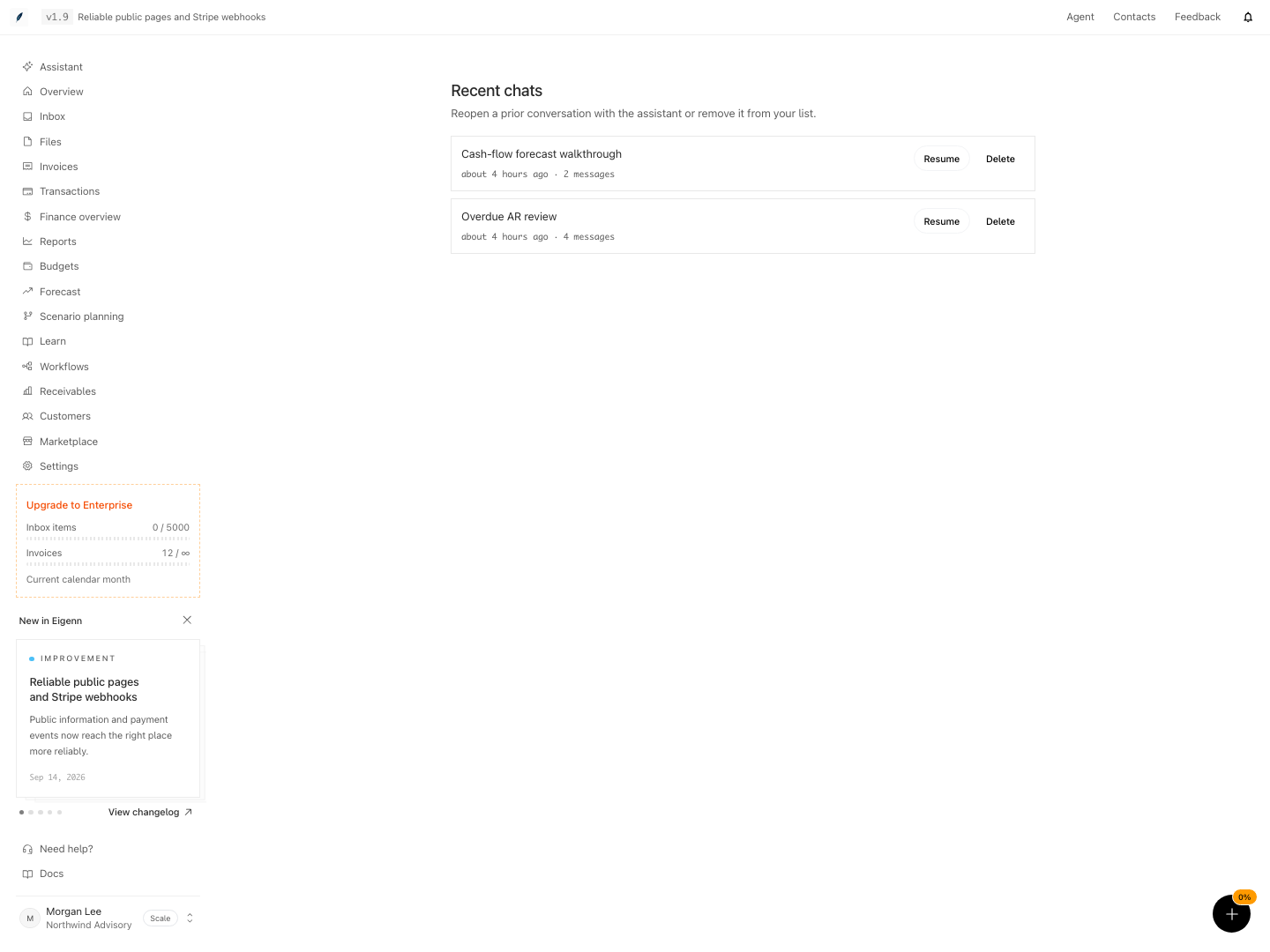
Recent assistant chats with actions to resume or delete a conversation.
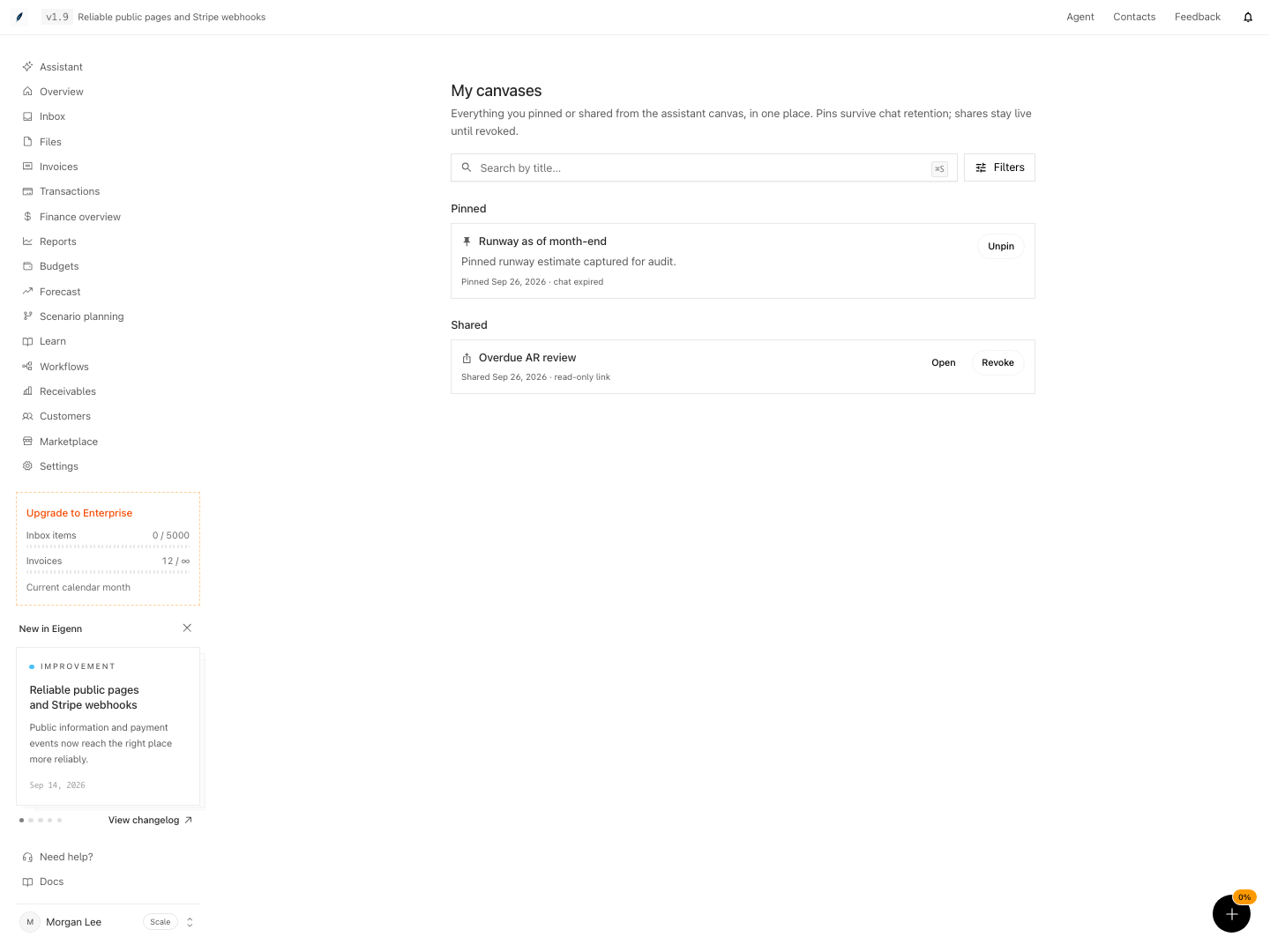
Saved assistant canvases with pinned results and shared read-only links.
Shown with synthetic data in a local workspace.
Verification
Troubleshoot
An activation step does not complete
Open the linked product area and confirm the required live condition. Then return to Workspace activation and refresh. A visited page is not enough when the underlying connection or record is still missing.
A business-profile change does not affect an answer
Confirm that the profile saved. Then start a new prompt that needs the fact. Live finance records and the prompt can be more relevant than a profile field.
A recent chat opens without the expected context
Check that you selected the intended row and workspace. Use a pinned answer when the exact prior output must remain independently available.
A shared canvas should no longer be public
Open My canvases, find the item under Shared, and revoke it. Confirm that the old share URL no longer opens.
A collections policy is enabled but no action runs
Check the segment, Autopilot state, receivables records, approval controls, and audit. An enabled policy is permission to use a stance. It is not proof that an eligible collections event occurred.
- Open Assistant → Workspace activation and confirm each checklist step updates as relevant product actions are taken.
- Save a business profile fact and verify the 'Business profile saved' confirmation appears.
- Open a conversation from Recent Chats, confirm the correct context is loaded, then delete it and check that it is removed from the list.
- Pin an answer, verify that it appears in Pinned Answers, and confirm the snapshot does not update as circumstances change.
- Use My Canvases to find a pinned answer by title, open it, and check that it remains after its original chat is deleted.
- Share a canvas and verify that the shared link works until revoked, after which it no longer provides access.
- Set up a Collections Autopilot policy, enable it, and check that eligible actions require the expected approval and audit steps.
- Attempt to access a workspace-only record with a user lacking workspace access and confirm access is denied.