Export a model
Download the values of a planning model as a CSV file or an Excel workbook, and save exports to run again.
An export writes the calculated values of a model to a file. Use a Raw file for pivot tables and data warehouses. Use a Formatted file when people will read the values in Excel.
A workspace Owner can export the full model. A teammate who opens a shared view can export only the values that the view shows. Eigenn exports one model at a time.
Formats
| Format | Contents |
|---|---|
| Raw values (.csv) | One row for each value. |
| Raw values (.xlsx) | The same rows, in an Excel workbook. |
| Formatted values (.xlsx) | The model layout, with variables as rows and time periods as columns. |
1. Export from the model grid
- Open the model.
- In the toolbar, click More → Export.
- Under Format, select a format.
- Under Version, keep Current version, or select a named version.
- Under View, keep All values, or select a saved view.
- For a Raw format, select the Columns to include.
- Read the size estimate, then click Generate.
The browser downloads the file. The dialog shows the file name and the number of rows.
Raw columns
| Column | Default | What it adds |
|---|---|---|
| Scenario | On | The scenario of each value. When it is on, the file has rows for each scenario in the export. A saved view can limit the scenarios. When it is off, the file has the active scenario only. |
| Dimension item | On | The dimension items of each value. |
| Currency | On | The currency of each value. |
| Cell state | On | The source of each value, for example actual, manual_input, or scenario_override. |
| Formula text | Off | The formula of each variable. |
| Non-sum aggregate rows | Off | Total rows that do not use a sum. |
A Formatted file ignores the column choices. It contains the active scenario only. It also contains the quarter or year totals that the grid shows. A named version exports only the scenario that it was saved with.
Large exports
- If the estimate is more than 8 MB, the dialog shows a warning before you click Generate.
- An Owner export of Current version with All values then runs in the background. The file shows in the export history when it is ready.
- To make a file smaller, turn off Scenario, or export through a saved view.
2. Save an export to run again
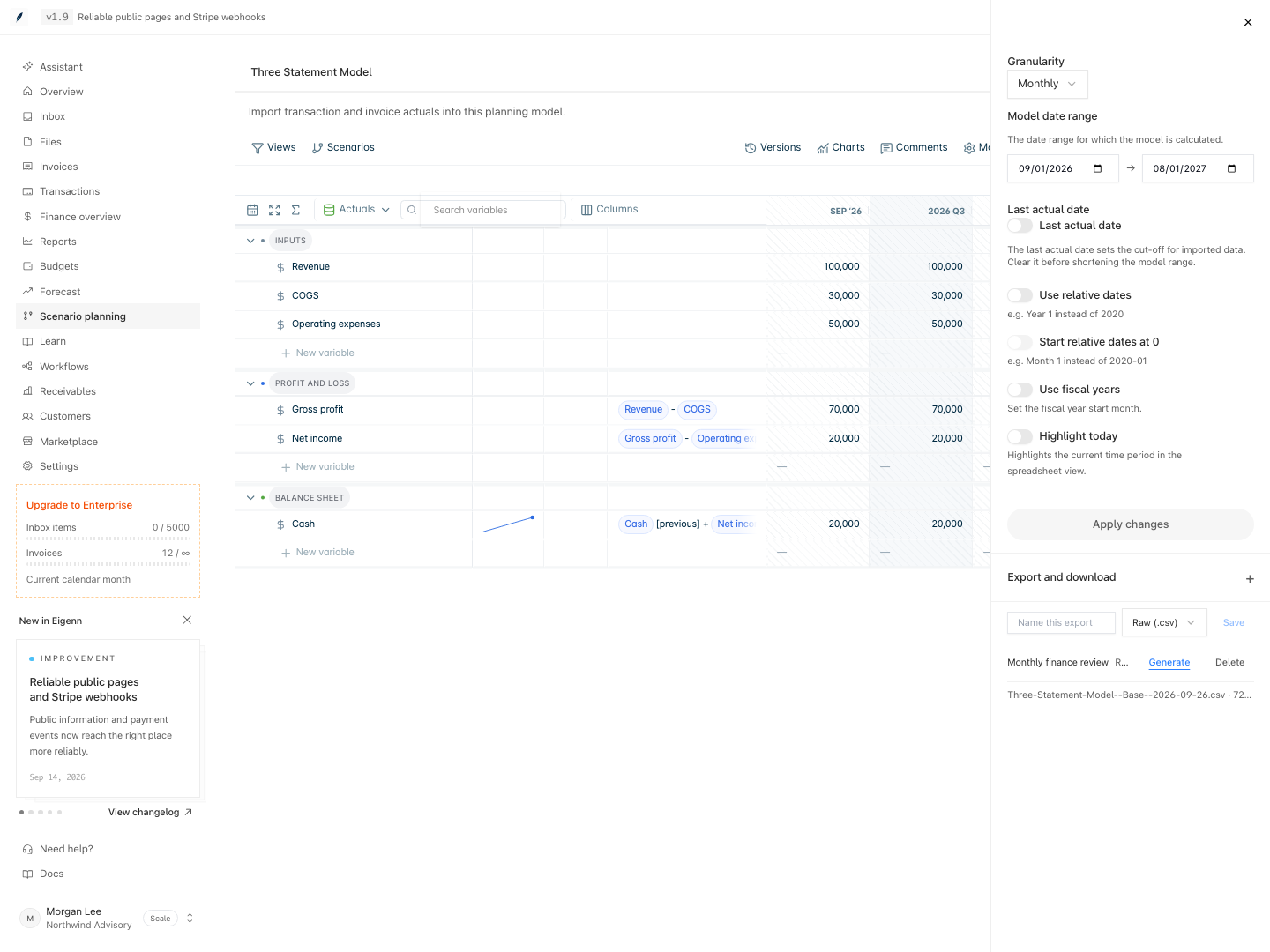
- In the toolbar, click Model settings.
- Expand Export and download.
- Type a name in the Name this export field.
- Select a format and click Save.
- To run the export, click Generate next to its name.
Each run uses the current values of the model. A saved export uses the current version, all values, and the default columns. Click Delete to remove a saved export.
Export history
Below the saved exports, Eigenn lists the last 10 runs. Each run shows the file name, the number of rows, and the status. Click Download to get a stored file again. The download link works for 10 minutes.
A file that went straight to the browser has no Download link. Generate the export again to get the file.