Build a Driver-Based Planning Model
Turn a business question into assumptions, formulas, dimensions, outputs, and checks that a reviewer can follow.
Summary
This guide builds a planning model from business drivers instead of copied spreadsheet values.
Capabilities
Allows you to construct business planning models based on driver logic, capture assumptions, create variable timelines and dimensions, add scenarios, and ensure models are explainable and review-ready.
Prerequisites
Scenario planning requires Scale or Enterprise. Use a workspace Owner account for full-model workflows; other teammates open only saved views shared with them. Changes also require active billing access. See Planning access.
Before You Start
Choose one decision and one owner.
Examples include:
- How does hiring affect cash over the next 12 months?
- What revenue follows from customer growth and pricing?
- How does a collections delay affect working capital?
- What operating plan reaches a target gross margin?
Collect only the actuals and assumptions required for that decision.
Concepts
Driver-based planning uses defined calculations and business logic, rather than static values, to forecast outputs. Each model is anchored by key drivers (inputs that influence results), structured timelines, scenarios, supporting documentation, and a transparent review process.
Workflow
1. Define the Output
Write the primary output first.
Examples:
- Ending cash by month
- Monthly recurring revenue
- Headcount cost by department
- Gross margin percentage
- Receivables balance and DSO
Add one or two supporting outputs. Do not begin with every metric the business tracks.
2. Draw the Driver Chain
Work backward from the output.
For a simple revenue plan:
- Beginning customers
- New customers
- Churned customers
- Ending customers
- Average revenue per customer
- Revenue
For a hiring plan:
- Beginning headcount
- Planned hires
- Departures
- Ending headcount
- Loaded cost per employee
- Payroll expense
Each relationship should be explainable in one sentence.
3. Create or Choose the Model
- Open Scenario planning → Models.
- Select a template that matches the driver chain, or start blank.
- Name the model for the subject and period.
- Assign an accountable owner.
- Save it in the appropriate folder.
Use a template only when its structure helps. Delete or rename a template variable only after checking what depends on it.
4. Set the Timeline
Open Model settings and choose:
- granularity
- start period
- end period
- last actual date
- fiscal-year display when needed
Use the same period detail as the decision. Avoid daily detail for a quarterly decision.
5. Add Actuals
Import or link the actuals that establish the starting point.
- Refresh the planning source.
- Import or link the required actuals.
- Compare one known period with the source.
- Confirm the last actual date.
- Keep actual rows distinct from assumptions.
Do not continue until the starting actuals are credible.
6. Create Driver Variables
Create one variable for each driver.
For every variable, set:
- a specific label
- the number format and unit
- input or formula behavior
- the relevant dimensions
- an owner or rationale
Use sections and groups to separate assumptions, operating calculations, and outputs.
7. Add Formulas in Order
Build from upstream drivers to downstream outputs.
- Add the simplest relationship.
- Save it.
- Change one input.
- Confirm the result changes.
- Continue to the next relationship.
Use formula suggestions and templates instead of guessing function names. Create helper variables when one formula becomes difficult to explain.
For the revenue chain above, a reproducible monthly sequence is:
| Variable | Formula |
|---|---|
| Customers | if Customers[previous] = blank then Starting customers else Customers[previous] * (1 - Monthly churn rate) + New customers per month |
| MRR | Customers * Average revenue per account |
| ARR | MRR * 12 |
Create the four input variables before saving these formulas. Select each variable from Formula Explorer, then change New customers per month and confirm all three calculated rows respond.
8. Add Dimensions Only Where Needed
Apply a dimension when the decision needs a breakdown such as department, region, entity, or cohort.
After applying it:
- Confirm the members.
- Check member-level inputs.
- Review the aggregate.
- Confirm source mappings.
- Test one member independently.
A dimension should make the model more useful, not only larger.
9. Create a Base Case
The base case should represent the team's current operating expectation.
Confirm:
- actuals are current
- assumptions have owners
- formulas calculate without unresolved errors
- units and signs are consistent
- the model status is Up to date
- the owner can explain the key driver chain
Save a named version such as Initial reviewed base.
10. Add One Scenario
Create one alternative case by changing only the drivers that define it.
Examples:
- Hiring delayed one quarter
- Conversion 15% lower
- Price increase starts in July
- Collections move 30 days later
Compare the output with the base. If the result does not change, trace the driver path before adding more overrides.
11. Check the Model
A reviewable driver model should pass these checks:
- one known actual period matches its source
- one formula can be reproduced independently
- each key input has an owner
- each scenario override has a rationale
- outputs respond in the expected direction
- dimension totals reconcile
- time settings match the decision
- calculation status is current
12. Prepare the Review
- Save a focused view.
- Include the key drivers and outputs.
- Select the intended scenario.
- Add comments to unresolved assumptions.
- Share the view with the lowest required access.
- Export a point-in-time copy when the review needs a file.
Behavior specification
Troubleshoot
The model has too many inputs
Replace copied period values with formulas and keep only the assumptions that a person must own.
A formula is difficult to audit
Split it into named helper variables and validate each intermediate result.
Dimension totals do not reconcile
Check missing members, aggregation settings, and source-to-member mappings.
The scenario produces an unexpected direction
Trace the changed driver through each dependent formula and check signs, units, and active periods.
Diagrams
Rendering diagram…
Screenshots
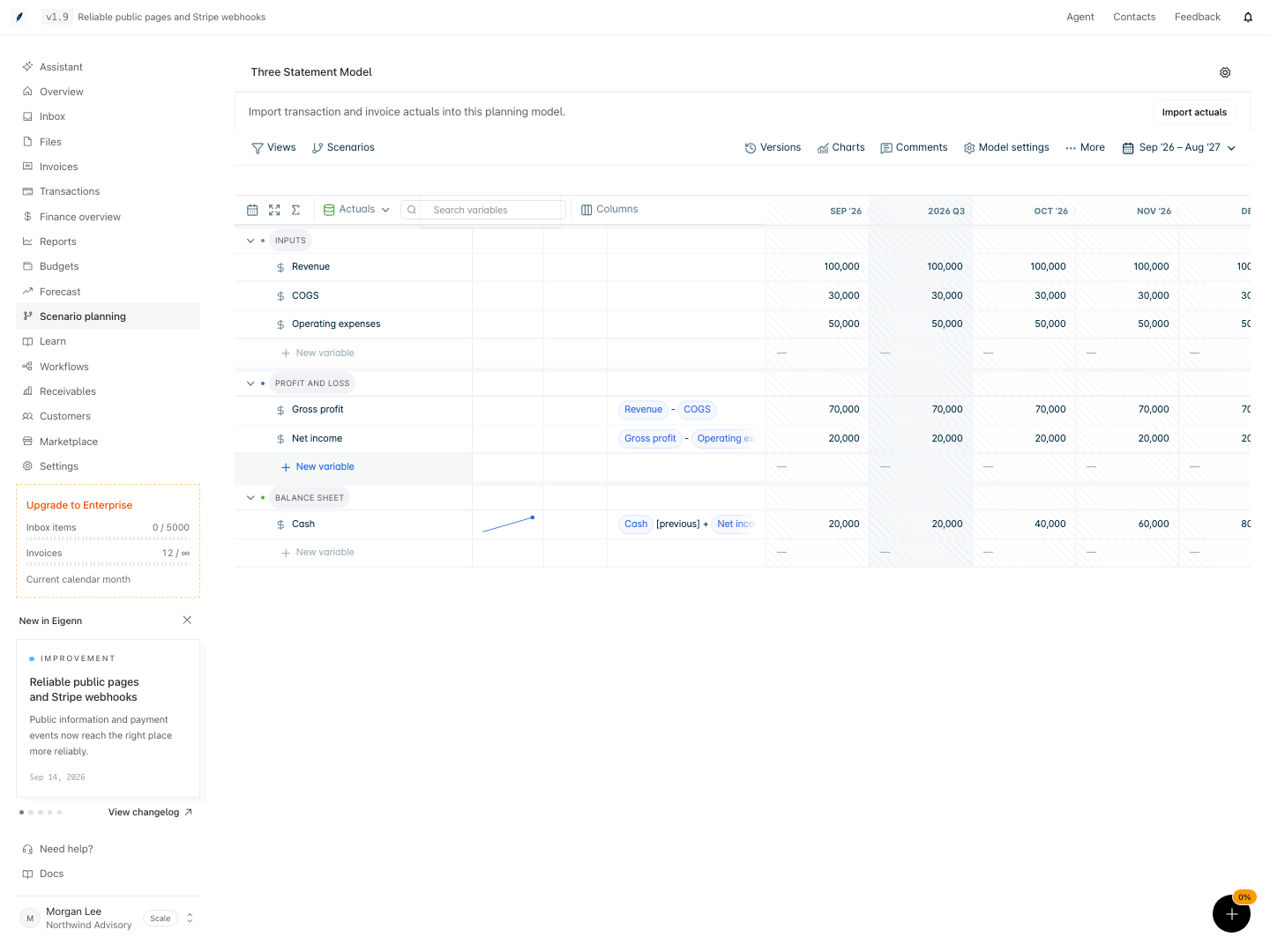
Three Statement model with revenue, expense inputs, gross profit, net income, and cash formulas.
Shown with synthetic data in a local workspace.
Verification
- Confirm that the latest period of actuals in the model matches the original data source; the output must be identical.
- Change a key input driver and observe that downstream outputs adjust as predicted.
- Check that each variable, formula, and assumption has a clear owner or rationale noted.
- Modify a scenario driver (e.g., increase hiring delay) and ensure the model's results change and support an explainable outcome.
- Review dimension-level values and ensure that member totals aggregate up and align with expectations.
- Verify that the time settings (granularity, periods) exactly match the planning question.
- Confirm calculation status indicates the model is up to date and error-free.