Share a view
Give a teammate view or edit access to one saved view, copy its link, and check what the teammate sees.
Share a saved view when a teammate needs part of a model and not the full model. Eigenn applies the view filters on the server before it sends the data. A share gives access to one view only. Other views of the model stay private.
Before you start
- You must be a workspace Owner.
- To give or change access, your team needs the Scale or Enterprise plan. You can remove access on all plans.
- Save the view first. See Create and edit a view.
- The teammate must be a member of the same team.
1. Open the sharing panel
Use one of these paths:
- Select Views, then select the share icon on the row of the view. Eigenn also applies the view.
- Select More → Share, or Model settings → Sharing. If no view is open, select the view in Select a saved view.
2. Check the recipient preview
- Select Preview Can view or Preview Can edit.
- Check the rows, periods, and scenario in the read-only preview.
- Read the warnings in the panel. For example, a visible total can include hidden rows. Hide that total too when it is sensitive.
You cannot give access until the preview check loads. If Eigenn shows "The recipient preview could not be verified. Do not share until it loads.", wait and try again.
3. Give access
Beside the teammate, select an access level:
| Access | The teammate can |
|---|---|
| Can view | Read the view, export through the view, and preview named versions. |
| Can edit within view | Do all of the above, and change inputs and formulas inside the view. |
A teammate with the Viewer role can get Can view only. Can edit within view does not give access to model structure, data sources, sharing, or version actions. Use the lowest access level that the teammate needs.
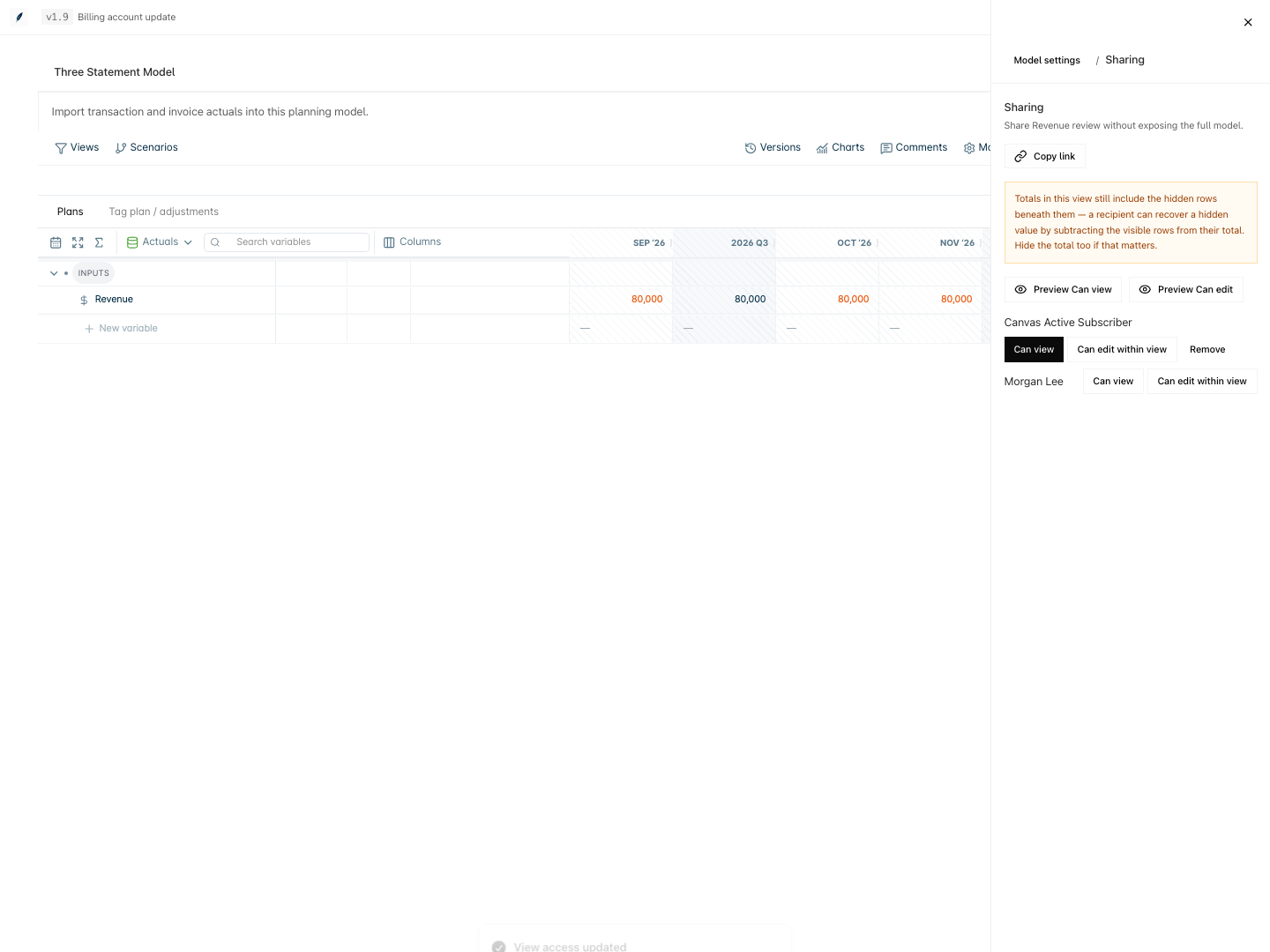
4. Copy and send the link
- Select Copy link.
- Send the link to the teammate.
The link alone gives no access. The teammate must sign in to the same team and have a grant for that view.
What the teammate sees
- The model name, then the view name and the access level, for example "Revenue review · Can view".
- Only the rows, dimension items, periods, and charts that the view allows.
- The scenario that the view saved. The Views and Scenarios menus do not show.
- In Versions, the named versions only. The teammate can preview a version but cannot create, restore, rename, or delete one.
A teammate who has only shared views sees Shared planning views in Scenario planning. From there, the teammate opens each view.
Remove access
Select Remove beside the teammate. On the next load, the teammate sees "This shared view is unavailable." A file that the teammate exported before stays with the teammate.
When you delete a view, Eigenn removes all of its grants. When you change the filters of a view, the teammate sees the new scope.