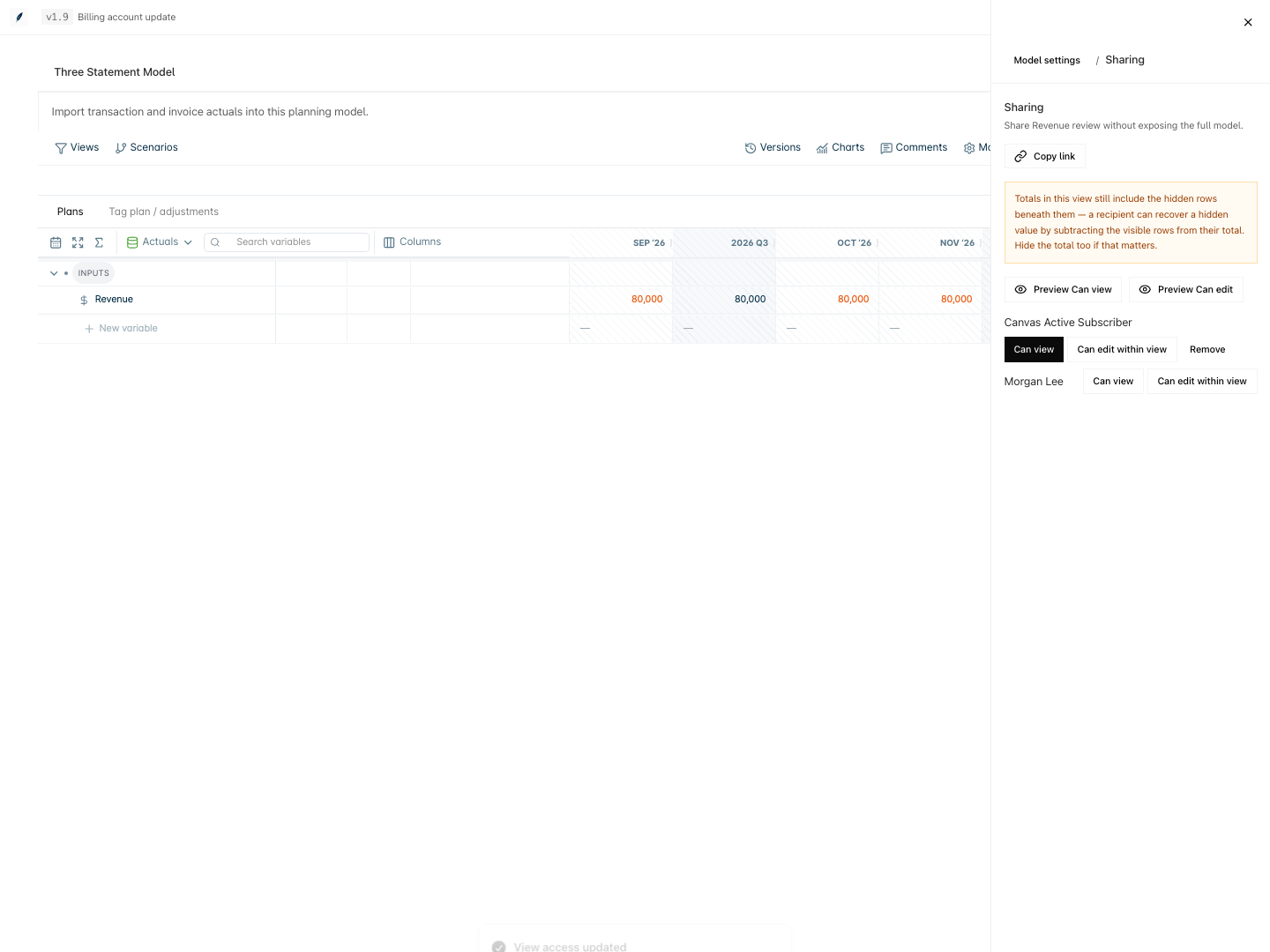
Share a model and set access
Share a saved view of a planning model with a teammate as Can view or Can edit within view, preview the result, and copy the link.
You share a planning model through a saved view. The teammate sees only the rows, periods, and scenarios that the view allows. The full model stays with the team Owner.
Only an Owner manages sharing, because only an Owner opens the full model.
1. Save the view to share
Create a saved view with the filters that the reader needs. Refer to Create a view. If the model has no saved view, the sharing panel shows "Create a saved view from Views before sharing it with a teammate."
2. Open the sharing panel
Use one of these paths:
- Select Views, then select the share icon beside the view. Its accessible name is Share followed by the view name and "view".
- Select More → Share.
- Select Model settings → Sharing.
If no view is active, choose one in Select a saved view. The panel then shows "Share view name without exposing the full model."
3. Check what the reader sees
- Read the warnings. For example, a visible total can still include hidden rows below it.
- Select Preview Can view or Preview Can edit. Eigenn shows the view as the reader will see it.
The access buttons stay disabled until the check loads. If the check fails, the panel shows "The recipient preview could not be verified. Do not share until it loads."
4. Give access
Beside the teammate, select the access level:
| Access | The reader can |
|---|---|
| Can view | Read the view and its charts, export through the view, and preview named versions. |
| Can edit within view | Do the same, and also change inputs and formulas inside the view. |
Eigenn shows "View access updated". To take access away, select Remove. Eigenn shows "View access removed".
These rules apply:
- The list shows only active members of your team. Eigenn refuses other people.
- Can edit within view does not show for a team Viewer. A Viewer gets read access only.
- A new or changed grant needs the Scale or Enterprise plan. Without it, the panel shows "Creating or changing grants requires the Scale or Enterprise plan." and an Upgrade button.
- A grant on one view does not give access to other views of the model.
- If you change the filters of the view, the reader sees the new scope.
5. Send the link
- Select Copy link. Eigenn shows "Shared-view link copied".
- Send the link to the teammate.
The link opens the model and the view. The teammate must sign in to your team and hold a grant. Without a grant, the link shows "This shared view is unavailable." Eigenn shows the same message for a view that does not exist. Thus nobody can find out which views a model has.