Review, Restore, and Export a Planning Model
Preserve a decision point, preview or restore model history, prepare a focused review view, and generate a point-in-time file.
Summary
This guide prepares a model for a formal review and preserves a safe path back before major changes.
Capabilities
You can create named versions to lock down major decision points, preview previous model states, restore an older version to revert changes, save views for focused reviews, assign secure access levels, generate exports in various formats, and track export usage history. The model captures all relevant context including scenarios, actuals, granularity, and outputs.
Prerequisites
Scenario planning requires Scale or Enterprise. Use a workspace Owner account for full-model workflows; other teammates open only saved views shared with them. Changes also require active billing access. See Planning access.
Before You Start
- Confirm the model owner.
- Refresh required actuals.
- Confirm the active scenario.
- Confirm calculation status is Up to date.
- Resolve or identify open formula errors.
- Know who needs view or scoped edit access.
Concepts
A named version freezes a review point; a saved view presents current model data through its saved filters. An export is a file generated at a particular time.
Workflow
1. Create a Named Version
Open Versions and create a label that identifies the decision point.
Examples:
- FY27 plan for leadership review
- June forecast before close
- Approved base before hiring change
A named version remains easier to find than a regular auto-saved copy.
2. Preview the Version
Select Preview.
Confirm:
- model date range
- granularity
- last actual date
- currency and units
- key assumptions
- active scenario context
- key outputs
Preview does not change the live model.
3. Check Comparability
A version marked Not comparable can use different time or currency settings.
Use it for historical context, but do not present a direct delta as though the structures match.
4. Restore When Necessary
Restore only when the live model should return to the selected state.
- Tell active collaborators.
- Preview the version again.
- Select Restore.
- Review the confirmation hint.
- Confirm the restore.
- Reopen the model and check the result.
Eigenn snapshots the current state before restoring, so the prior live state remains available.
5. Prepare a Saved View
Arrange the model for the reviewer.
Include:
- the assumptions under review
- key outputs
- the necessary periods
- the intended scenario
- relevant comments
Save the view with a specific label.
A saved view is live. It does not freeze the model at the named version.
6. Assign Access
The model owner can share the saved view as:
- Can view for result-only access
- Can edit within view for a teammate responsible for model changes
Choose the lowest level that supports the review.
7. Copy and Verify the Link
- Select the saved view in Sharing.
- Select Copy link.
- Open the link in another browser context when possible.
- Confirm the model, view, scenario, periods, and access.
8. Generate an Export
Choose the file shape required by the review.
- Use Formatted (.xlsx) for a readable workbook.
- Use Raw (.xlsx) for a structured Excel file without presentation formatting.
- Use Raw (.csv) for downstream analysis or import.
Confirm the selected rows, columns, scenario, and version before generation.
Choose the linked-model scope: Current for this model alone, All for every linked model, or Custom for the linked models that you select. Eigenn includes linked models only on a whole-model export run by a workspace Owner. A saved-view export always covers the current model alone.
9. Save a Reusable Definition
When the same output is needed repeatedly:
- Open Export and download.
- Enter a definition name.
- Choose the format.
- Select Save.
- Select Generate when the latest file is needed.
The definition runs against the current state of the model each time. A definition saved with the All scope re-resolves its linked models on every run, so a model linked later is included automatically.
10. Check Run History
Review:
- status
- generation time
- file name
- row count
- available download
A large export can be queued. An inline export can appear in history without a stored artifact for later download.
11. Record the Review
Keep these details with the decision:
- model name
- named version
- active scenario
- saved-view label
- actuals boundary
- export generation date
- open comments or approved proposal
Behavior specification
Troubleshoot
Restore is not available
Confirm model-wide version permissions. Shared-view access can allow preview without restore.
A named version cannot be deleted
Check dashboard and comparison references. Remove or update the dependent artifact first.
The saved view changed after the review
Saved views show the live model. Use the named version and exported file to preserve the reviewed point in time.
The export remains queued
Check run history after processing completes.
The generated file does not match the shared view
Review the export scope and selected view before generating another file.
Diagrams
Rendering diagram…
Screenshots
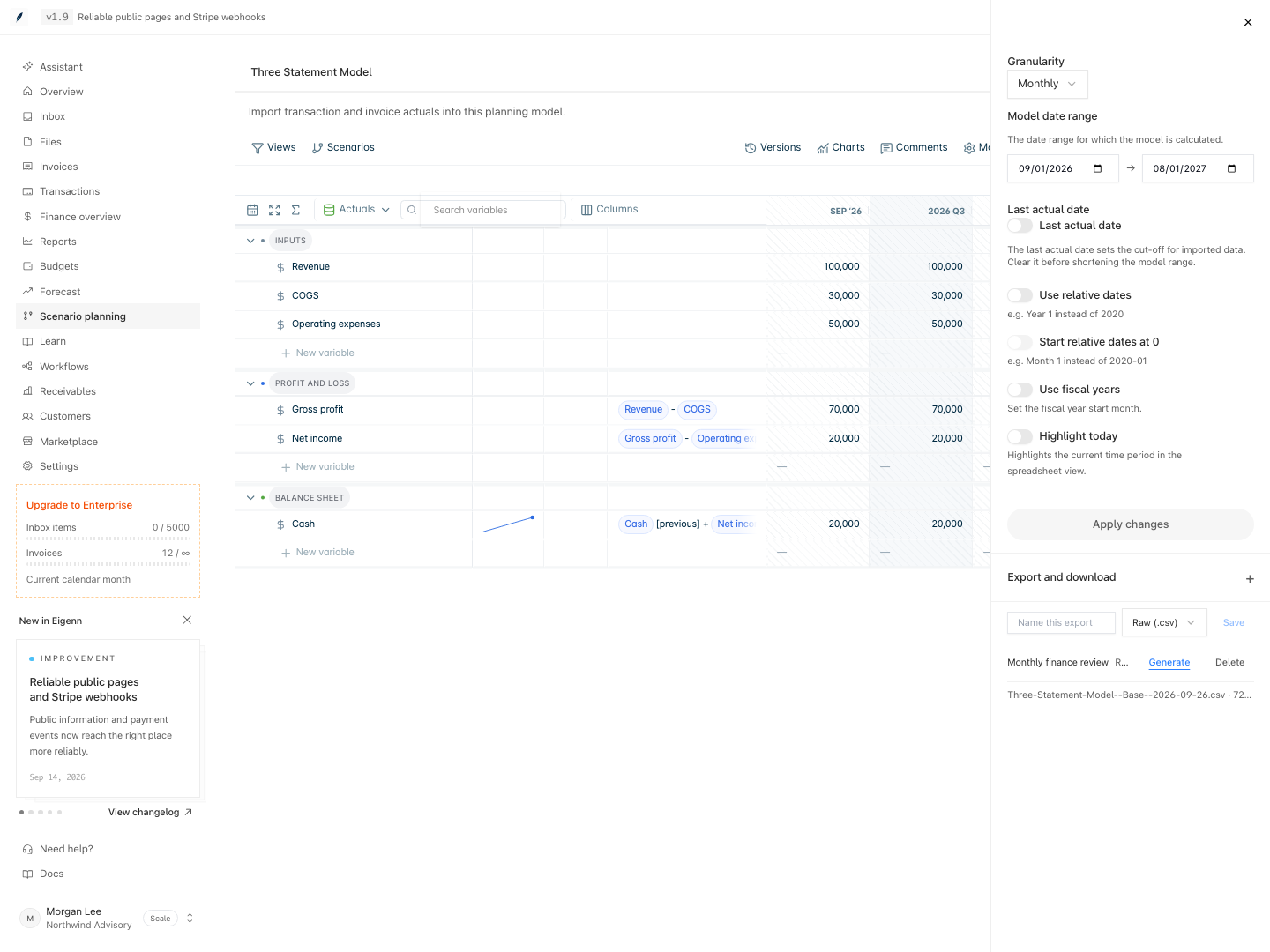
Model settings with a saved CSV export definition and its successful generation history.
Shown with synthetic data in a local workspace.
Verification
- Create a named version and verify it appears in the Versions list with the chosen label.
- Preview the version and check that the date range, scenario, assumptions, and outputs match expected values without altering the live model.
- Restore a past version, reopen the model, and confirm the prior state is now live.
- Save a view with key outputs, share it, and access the link in another browser to ensure permissions and content match what was shared.
- Export the model as both .xlsx and .csv and confirm files match the selected data and version.
- Save and rerun an export definition and check that every new export includes any newly linked models as expected.
- Review run history after generating exports to confirm status, row count, and download availability.
- Record all identifiers and confirm open comments and decision status are documented.
Linked-model restores
A saved version can include linked models. Restoring it updates the captured set together and keeps a recovery snapshot. Current actuals can change the restored live numbers. See Version History for retention, access, and preview behavior.
Related
Next Steps
Review a Customer Finance Record
Examine customer-level invoice exposure, payment behavior, communications, and follow-up work before you make a collections or forecast decision.
Run a Finance Operating Review
Move from source health to actuals, plan variance, invoice exposure, and scenario-backed decisions.