Consolidation
Roll several entities into one consolidated P&L, remove inter-company amounts, and convert each entity to a base currency.
This guide builds a consolidated profit and loss for a group of companies in Scenario planning. You enter the revenue and costs of each entity. Eigenn adds them up, removes the inter-company amounts, and converts foreign entities to one base currency. The guide is for finance leads who report on a parent company and its subsidiaries.
Time: about 15 minutes
Before you start
- Use an Owner or Member role. A Viewer can open models but cannot change them.
- Collect the monthly revenue and operating costs of each entity.
- List the inter-company amounts, such as sales or fees between two entities in the group.
- For entities in other currencies, get a rate to the base currency for each month.
Choose the template:
| Template | Use it when | Entity items |
|---|---|---|
| Consolidation by Entity | All entities report in one currency. | United States, United Kingdom, Canada, Eliminations |
| Multi-currency Consolidation | Entities keep books in different currencies. | US (USD), UK (GBP), Germany (EUR), Eliminations |
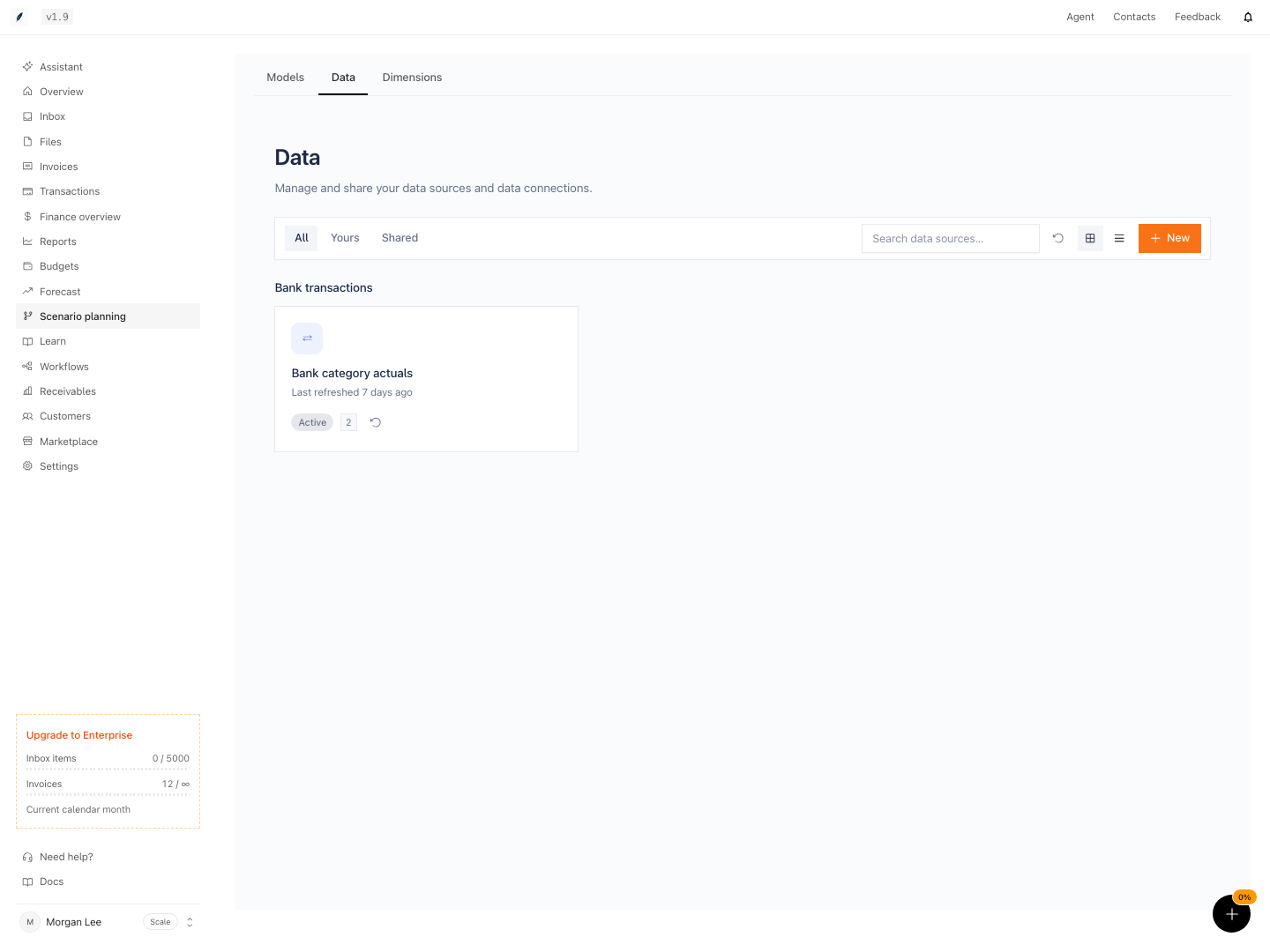
Both templates start with example figures. They do not link a data source. To see which sources can supply actuals, go to Scenario planning → Data.
1. Create the model
- Go to Scenario planning → click New model.
- In the Create model search box, type
consolidation. - Select the template and press Enter.
Eigenn opens the new model with 12 monthly periods. The grid has three sections: Inputs, Consolidated (Consolidated (base) in the multi-currency template), and Summary. The Entity dimension breaks down each input and each consolidated row.
2. Enter the figures of each entity
- Click Expand all in the grid header. Each variable shows one row per entity.
- Select a cell, type the value, and press Enter.
- Do this for each entity and each month.
Consolidation by Entity calculates:
| Variable | Formula |
|---|---|
| Net profit | Revenue - Operating costs |
| Consolidated net margin | Net profit / Revenue |
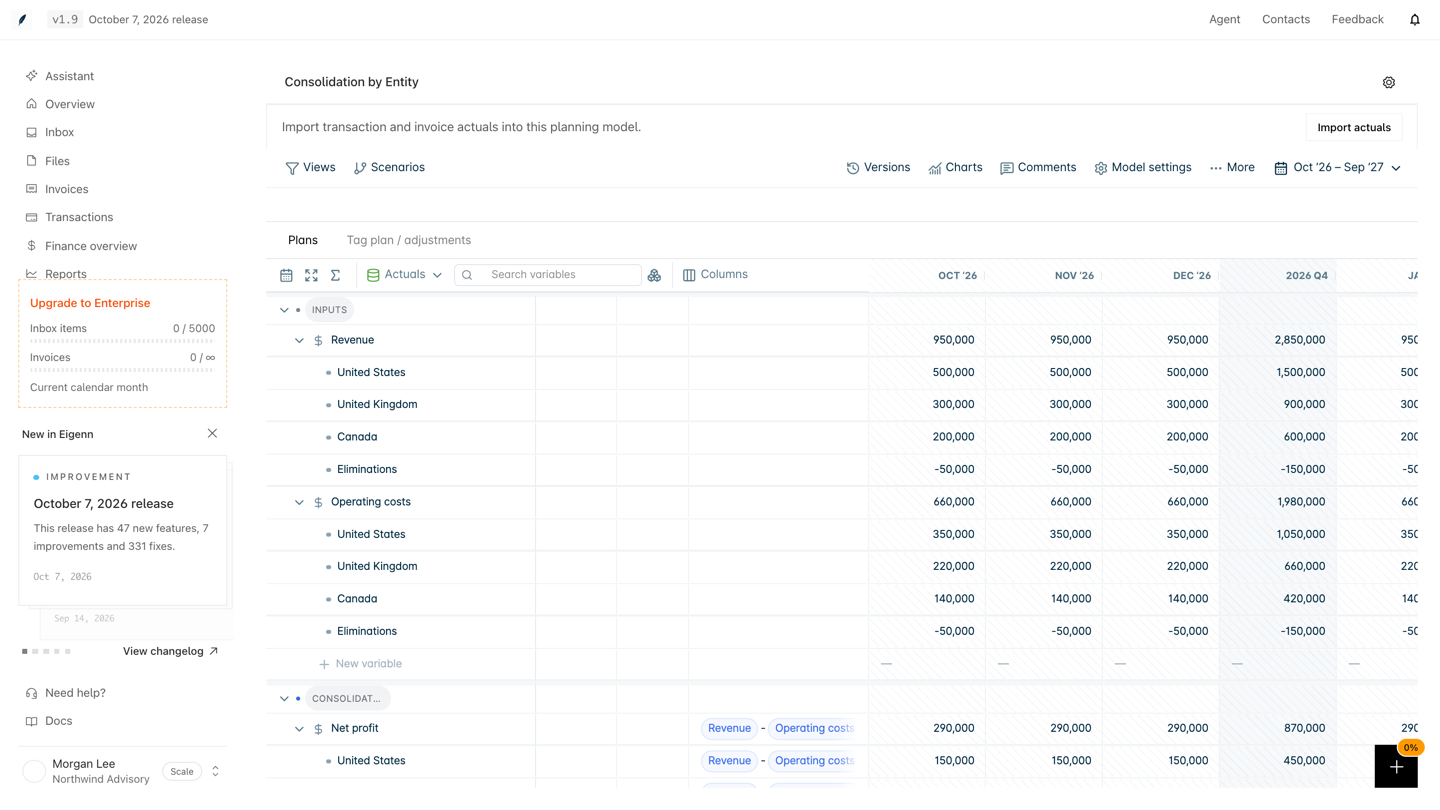
Eigenn calculates Net profit for each entity. The total row adds the entities. Consolidated net margin uses the totals. With the example figures, one month looks like this:
| Entity | Revenue | Operating costs | Net profit |
|---|---|---|---|
| United States | 500,000 | 350,000 | 150,000 |
| United Kingdom | 300,000 | 220,000 | 80,000 |
| Canada | 200,000 | 140,000 | 60,000 |
| Eliminations | −50,000 | −50,000 | 0 |
| Total | 950,000 | 660,000 | 290,000 |
The consolidated net margin is 290,000 / 950,000, about 30.5%.
3. Remove inter-company amounts
A sale between two entities in the group is revenue for one entity and a cost for the other. The group did not earn that money. Remove it in the Eliminations item:
- Find the inter-company amount for the month.
- Enter it as a negative number in the Eliminations row of Revenue.
- Enter the same negative number in the Eliminations row of Operating costs.
When the two sides are equal, the Eliminations row of Net profit is 0. A different value shows that the two sides do not match. Correct the inputs before you report.
4. Convert foreign entities to the base currency
Use Multi-currency Consolidation when entities report in different currencies. Each entity has three inputs: Revenue (local), Operating costs (local), and FX rate to base. The Consolidated (base) section calculates:
| Variable | Formula |
|---|---|
| Revenue (base) | Revenue (local) * FX rate to base |
| Operating costs (base) | Operating costs (local) * FX rate to base |
| Net profit (base) | Revenue (base) - Operating costs (base) |
| Consolidated net margin | Net profit (base) / Revenue (base) |
Each entity converts with its own rate. Then Eigenn adds the converted values. For example, UK revenue of 300,000 at a rate of 1.27 gives 381,000 in the base currency. With the example figures, the total Revenue (base) is 1,111,000 (500,000 + 381,000 + 270,000 − 40,000).
Follow these rules:
- Enter a rate for each entity in each month. Each period holds its own value.
- Keep the rate of the base-currency entity at 1.
- Enter eliminations in the base currency. The template gives Eliminations a rate of 1.
- Do not use the total row of FX rate to base as a rate. It shows the average of the items, and the totals do not use it.
5. Add or rename an entity
- In the model toolbar, click More → Dimensions.
- Select Entity.
- To rename an item, type the new name in its row. Then click its save (pencil) button.
- To add an entity, type the name in Add an item under Items.
- Click the + button (Add dimension item).
Each name must be unique in the dimension. Eigenn adds a row for the new entity under each variable that uses Entity. Enter its figures. In the multi-currency template, also enter its FX rate to base.
6. Check the result
Before you share the numbers, make sure that:
- each total row of an amount equals the sum of its entity rows (the total of FX rate to base is an average)
- the Eliminations row of net profit is 0 in each month
- each foreign entity has a rate in each month
- Consolidated net margin moves when you change the revenue of one entity
To test a currency move:
- In the model toolbar, click Scenarios.
- Click the + button (Create scenario).
- Type a Scenario name. Then click Save scenario.
- Open Scenarios and select the new scenario.
- Change one FX rate to base. The base values do not change.
- Click Model settings → Scenarios. Use Compare scenarios to see the difference.