Dimensions
A dimension is a list of items that breaks a variable into one row per item, runs its formula for each item, and rolls the items up into a total.
In a plain spreadsheet, a breakdown is a block of copied rows. To plan revenue by region, you copy the revenue rows for each region and add a total row. To add a region, you insert rows in every block and fix every total. One missed block makes the totals wrong.
In Eigenn, a dimension is a named list of items, such as Region with North America, Europe, and APAC. You break a variable down by a dimension. Eigenn then shows one row for each item, runs the variable's formula for each item, and adds the items into the variable's total. You keep one formula and one list of items.
1. A dimension is a list of items
A dimension names one way to split your plan. Each item is one value of that split.
| Dimension | Items |
|---|---|
| Region | North America, Europe, APAC |
| Product | Core, Add-ons, Services |
| Department | Sales, Product, Operations |
| Entity | Parent, UK, US |
A dimension belongs to one model. Item names must be unique in the dimension. A dimension is a flat list. The Hierarchy type shows as coming soon.
To create a dimension:
- Go to Scenario planning → Dimensions.
- Select New.
- Under Icon & name, choose an icon and enter the name.
- Under Model, choose the model that owns the dimension.
- Select Create.
In a model, you can also select More → Dimensions → New dimension.
2. A variable is broken down by a dimension
When you add a dimension, the variable gets one row for each item. The variable's own row becomes the total.
To break down a variable:
- On the variable row, select the options button (⋮).
- Select Dimensions.
- Under Break down and the variable name, select the dimension.
A dimension without items cannot be selected. You can also open the dimension and use Apply to variable.
A variable can use more than one dimension, such as Department and then Role. The rows nest in that order. Use Move dimension up and Move dimension down to change the order. The order does not change the formula.
3. Formulas flow through the dimension
The variable keeps one formula. Eigenn runs it one time for each item. In each run, a reference to a variable with the same dimension reads the same item. A reference to a variable without that dimension reads its single value.
Payroll is broken down by Department and uses this formula:
Headcount * Average salaryHeadcount has the Department dimension. Average salary does not.
| Department | Headcount | Average salary | Payroll |
|---|---|---|---|
| Sales | 4 | 8,000 | 32,000 |
| Product | 6 | 8,000 | 48,000 |
| Payroll (total row) | 80,000 |
One item can have its own formula. Open the formula on the item row and change it. To go back, select Use parent formula. To read one item from another formula, write Payroll by Department[Sales].
4. Totals roll up from the items
The total row uses the variable's dimension aggregation. To change it, open the variable options and select Aggregation → Dimension. The choices are Sum, Average, Median, Min, Max, Formula, and No aggregation.
Use Formula for a rate or a ratio. For example, Price per unit uses Revenue / Units sold. A sum of the regional prices has no meaning. With Formula, the total row runs the formula on the totals of Revenue and Units sold.
To change only the view, select Slice dimensions in the grid header and choose a dimension:
- All keeps the dimension intact.
- Aggregate sums across the dimension.
- Group by splits rows by item.
- Filter by shows only the items that you select.
5. You can change a dimension at any time
Open the dimension from Scenario planning → Dimensions, or from More → Dimensions in the model. Under Items, you can add, rename, delete, and reorder items.
When you add an item, every variable broken down by the dimension gets a row for it. The formula runs for the new row, and the totals include it. When you delete an item, its rows go away from those variables.
You cannot delete a dimension while the model still uses it. Variables, dimension links, scenario overrides, and saved view filters all count as uses. Remove the dimension from each of them first.
6. Dimensions are not transaction categories
Both group values, but they do different jobs.
| Transaction categories | Dimensions | |
|---|---|---|
| Where you manage them | The categories page under Transactions | Scenario planning → Dimensions |
| What they label | Transactions | Variables in a planning model |
| Scope | The whole workspace | One planning model |
| Shape | Parents with one level of children | A flat list of items |
| Settings | Tax type, tax rate, report code, exclusion | Name, icon, and items |
| Used for | Reports such as profit and loss | Breakdowns and totals in a model |
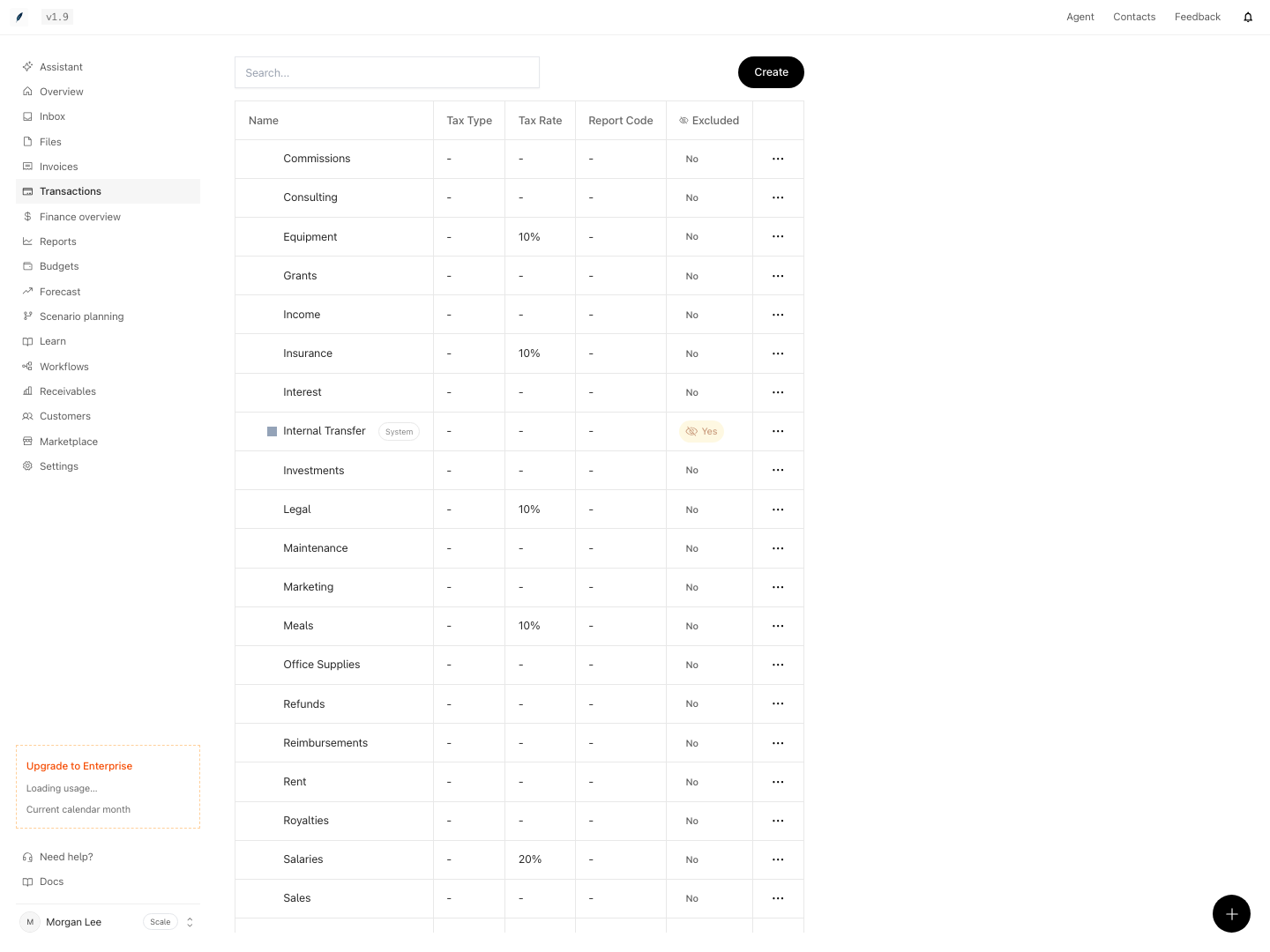
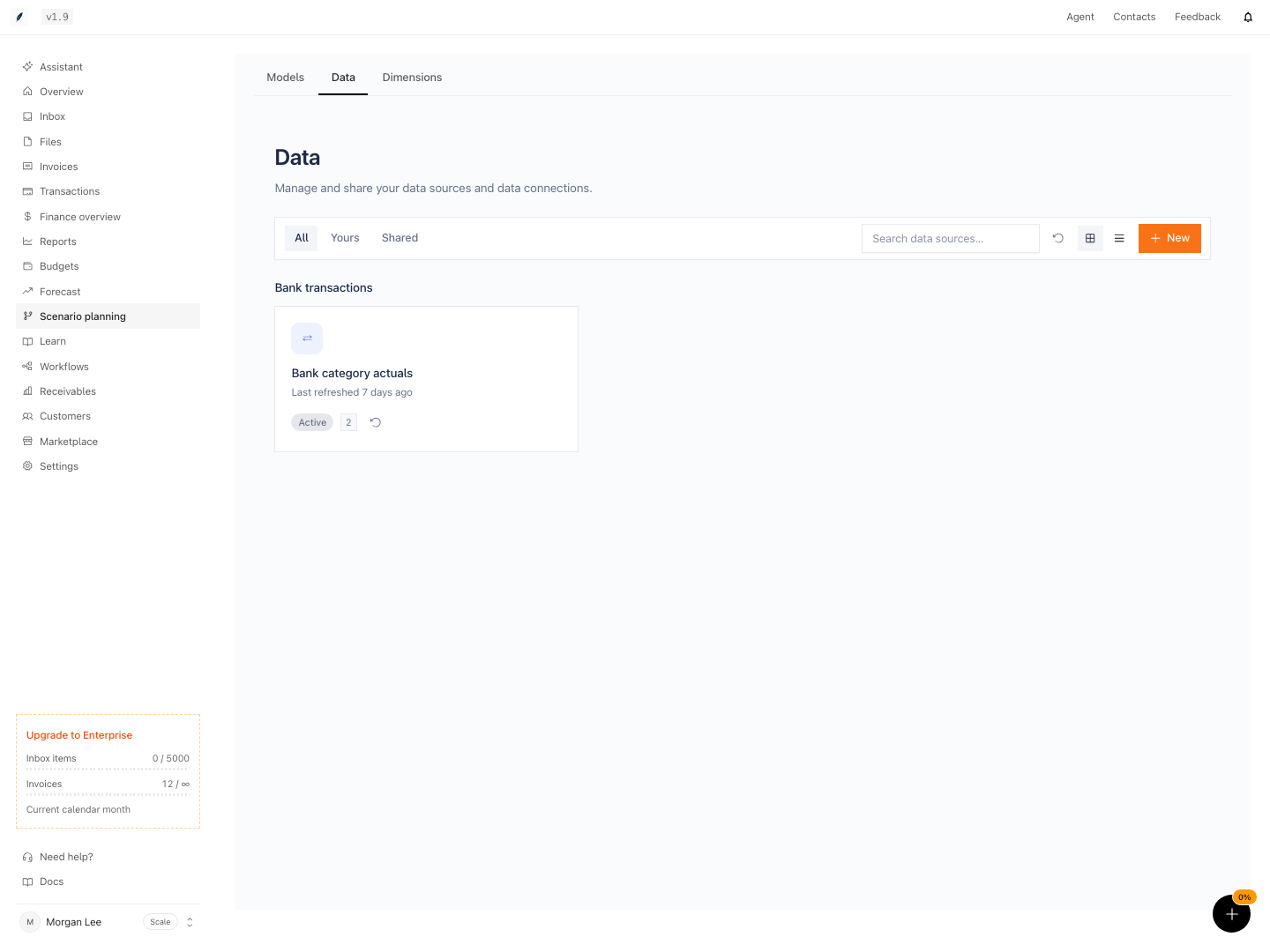
A category can feed a model as actuals. The Bank transactions data source gives the monthly total for each category. You connect one category's total to one variable. Eigenn leaves out internal transfers and categories that are excluded from reports. It does not let you connect an excluded category.
A category does not become a dimension. A dimension item does not categorize transactions.