Budget vs. Actuals
Set a monthly budget, let Eigenn read the actuals from your transactions, and compare plan against actual with variance.
This guide shows you how to set a monthly budget, connect it to your actual spend and revenue, and read the variance. At the end, you know which categories are over or under plan, and how the current month is pacing. The guide is for founders, finance leads, and operators who own a budget.
Time: about 15 minutes
Before you start
- Use an Owner or Member role. A Viewer can read budgets but cannot change them.
- Connect the bank accounts that carry your spend and revenue. Eigenn calculates actuals from recorded transactions.
- Categorize your transactions. An expense budget for a category compares against the spend in that category. Put revenue transactions in the Income category.
- Decide the currency for the budget.
- For the optional model in step 5, you need access to Scenario planning.
1. Create a budget line
- Go to Budgets → click New budget.
- In Type, select Expense or Revenue.
- In Category, select a transaction category. Select Whole team for one total for the team.
- Enter the Amount. The amount must be more than 0.
- Select the Currency and the Month.
- Optional: in Note (optional), tell reviewers the purpose of the budget.
- Click Create budget.
The new line shows in the List view.
To fill a full year, click Grid. The Grid shows one row for each category, a Whole team row, and one column for each month. Select a month in the Grid toolbar, and then use these tools:
| Tool | Result |
|---|---|
| Copy across | Copies the value of the selected month to every month in each row. |
| Grow | Grows each row from the selected month by the percentage per month that you enter. The growth compounds. |
| Seed from actuals | Fills each category row from the actuals of the previous year. It does not fill the Whole team row. |
You can also type a formula in a cell. Start the formula with an equals sign. For example, =prev*1.05 grows the value by 5% from the previous month.
2. Connect the actuals
The Budgets page has no import step. Eigenn reads the actuals from your recorded transactions:
- An expense line for a category uses the spend in that category for the month.
- An expense line for Whole team uses the total burn for the month.
- A revenue line for Whole team or Income uses the transactions in the Income category for the month.
- A revenue line for any other category gets no actuals. Use Whole team or Income for revenue budgets.
Eigenn compares actuals only for the months that have a budget line. A month with no budget line does not add to the Actual total.
To make sure the actuals are complete:
- Go to Transactions.
- Find the transactions for the month that you want to compare.
- Give each uncategorized transaction a category.
3. Compare plan against actual
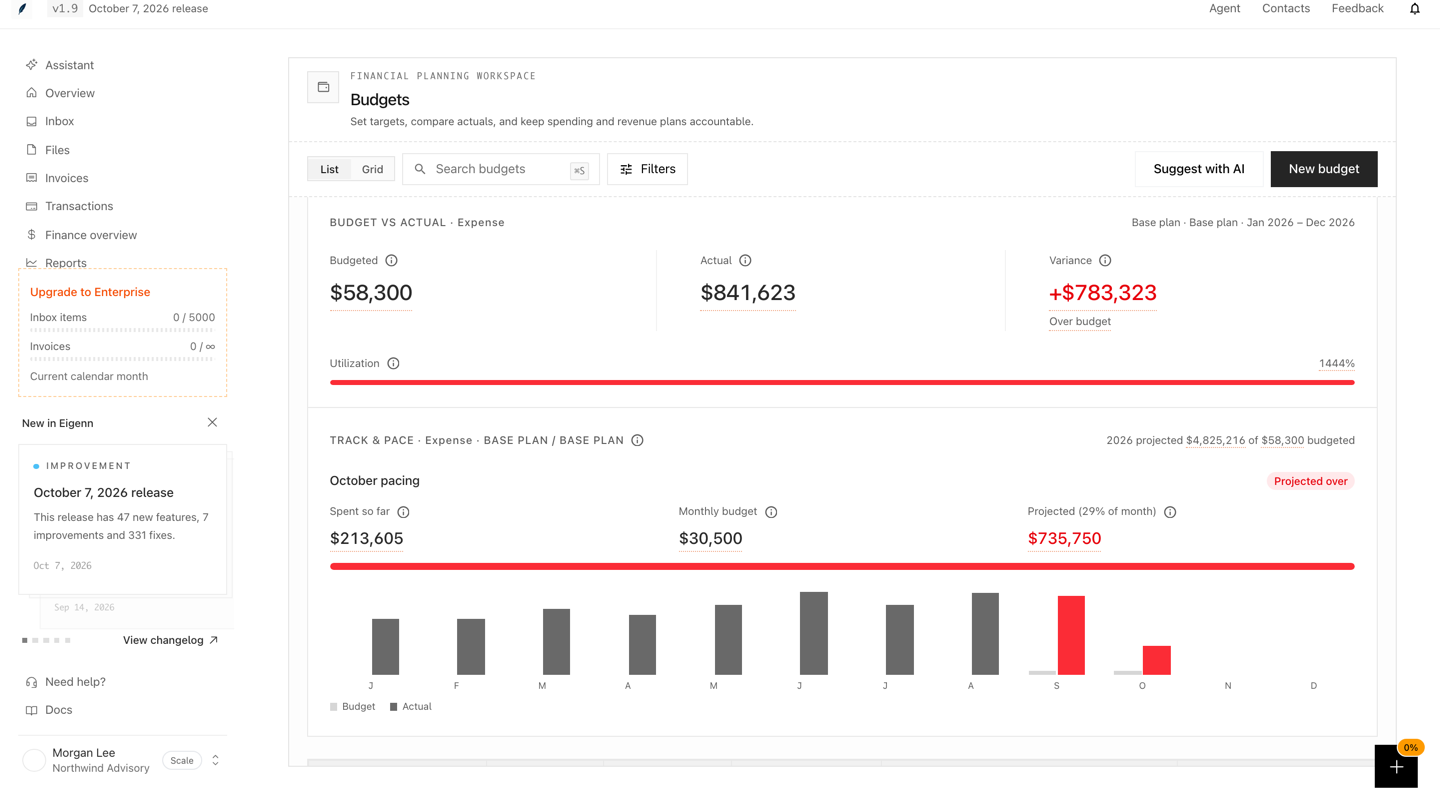
The Budget vs Actual card at the top of the page shows the comparison. By default, it shows Expense lines. The card header shows the plan and the date range.
- Read Budgeted, Actual, and Variance.
- Read the status under the variance.
- Read Utilization and its bar.
- To see revenue lines, click Filters → Kind → Revenue.
- To change the date range, click Filters → Period.
Eigenn calculates the values as follows:
| Value | Calculation |
|---|---|
| Variance | Actual minus Budgeted |
| Utilization | Actual divided by Budgeted, as a percentage |
The status label depends on the type of the budget:
| Type | Favorable | Unfavorable |
|---|---|---|
| Expense | Under budget or On budget | Over budget |
| Revenue | Above target or On target | Below target |
For example, an expense budget of 30,000 with actual spend of 33,000 gives a variance of +3,000. The status is Over budget, and utilization is 110%.
4. Check the pace of the current month
The Track & pace card shows if the current month will stay inside the budget. The pacing figures show only when the current month has a budget.
- Read Spent so far and Monthly budget.
- Read the projected value for the full month.
- Read the status. An expense budget shows On track or Projected over. A revenue budget shows On track or Projected under.
- Compare the monthly Budget and Actual bars.
The projection extends the month-to-date run rate to the full month. It does not include seasonality. Use it as an early warning, not as a forecast.
5. Optional: build the comparison as a model
Use a planning model when you want to test the variance under different assumptions.
- Go to Scenario planning → click New model.
- In the Create model window, select Budget vs Actuals Variance.
The template creates a model with monthly periods and three sections:
| Section | Rows |
|---|---|
| Inputs | Budgeted revenue, Actual revenue, Budgeted costs, Actual costs |
| Variance | Revenue variance, Cost variance, Budgeted profit, Actual profit |
| Resilience | Profit variance, Revenue attainment, Cost overrun |
The input rows contain example values. Replace them with your own monthly budget and actual values. The template calculates the output rows with formulas such as these:
Revenue variance   = Actual revenue - Budgeted revenue
Revenue attainment = Actual revenue / Budgeted revenue
Cost overrun       = Actual costs / Budgeted costs
Revenue attainment and Cost overrun show as percentages.
To test a different case, click Scenarios. Create a scenario, and then change only the inputs that define the case.
To load recorded actuals into a planning model, see Connect Planning Data and Actuals.