Scenarios
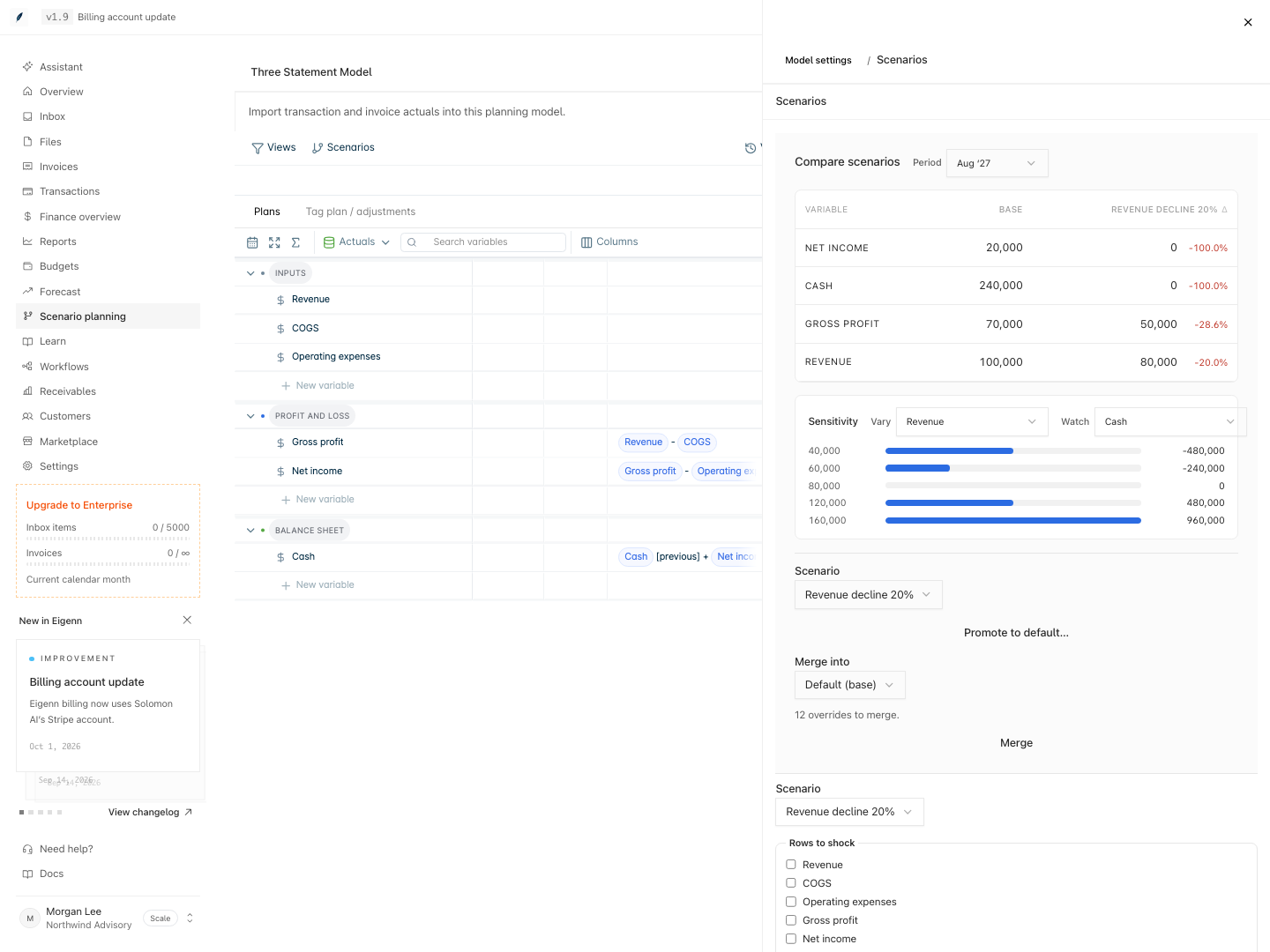
Test alternative cases inside one planning model with scenarios, shocks, and plans, and keep the base case unchanged.
A scenario is an alternative case inside a planning model. It keeps the base case and stores only the inputs that you change. These stored inputs are overrides. Use a scenario when you want to ask "what if" without a copy of the model.
Every scenario uses the same rows and formulas as the base. Eigenn calculates each scenario from the base values and the scenario overrides. Thus a difference between two scenarios comes only from their overrides. When you change the base, each scenario follows that change, except in the cells that the scenario overrides.
The Scenarios menu marks the base scenario Default. Each other scenario shows its number of overrides, for example 3 overrides. Only a team Owner opens the full model, so only an Owner creates, compares, shocks, or promotes scenarios. Other teammates see a scenario through a saved view that an Owner shares.
Pages in this group
- Create a scenario: add a scenario from the Scenarios menu, then enter overrides in the grid.
- Compare scenarios: read the changed rows side by side in Model settings, and see scenario lines in charts.
- Stress tests and shocks: change many forecast cells of a scenario in one step with a percent, amount, or fixed-value shock.
- Plans and adjustments: tag scenario changes with named initiatives and show their direct effect on a timeline.
Scenarios, versions, and saved views
These three tools do different jobs:
| Tool | What it keeps | Use it to |
|---|---|---|
| Scenario | Live overrides on the current model | Compare alternative cases now |
| Version | A frozen copy of the whole model, with all scenarios | Return to the model as it was on a past date |
| Saved view | A filter on rows, periods, and scenarios | Show a focused slice to a reader |
A scenario in a planning model is separate from a saved scenario in Forecast. The two do not update each other.
Related
Scenarios
A scenario changes selected inputs of a model without rewriting the base case, so you can compare and stress alternatives in one grid.
Share a model and set access
Share a saved view of a planning model with a teammate as Can view or Can edit within view, preview the result, and copy the link.