Create a scenario
Add a scenario from the Scenarios menu, enter overrides in the grid, and switch or delete scenarios.
A scenario holds the inputs that you change for one alternative case. Create one scenario for each question, such as "Price up 10%" or "Hiring delayed to Q2". Only a team Owner can create a scenario, because the Scenarios menu is part of the full model.
1. Create the scenario
- Go to Scenario planning → open a model.
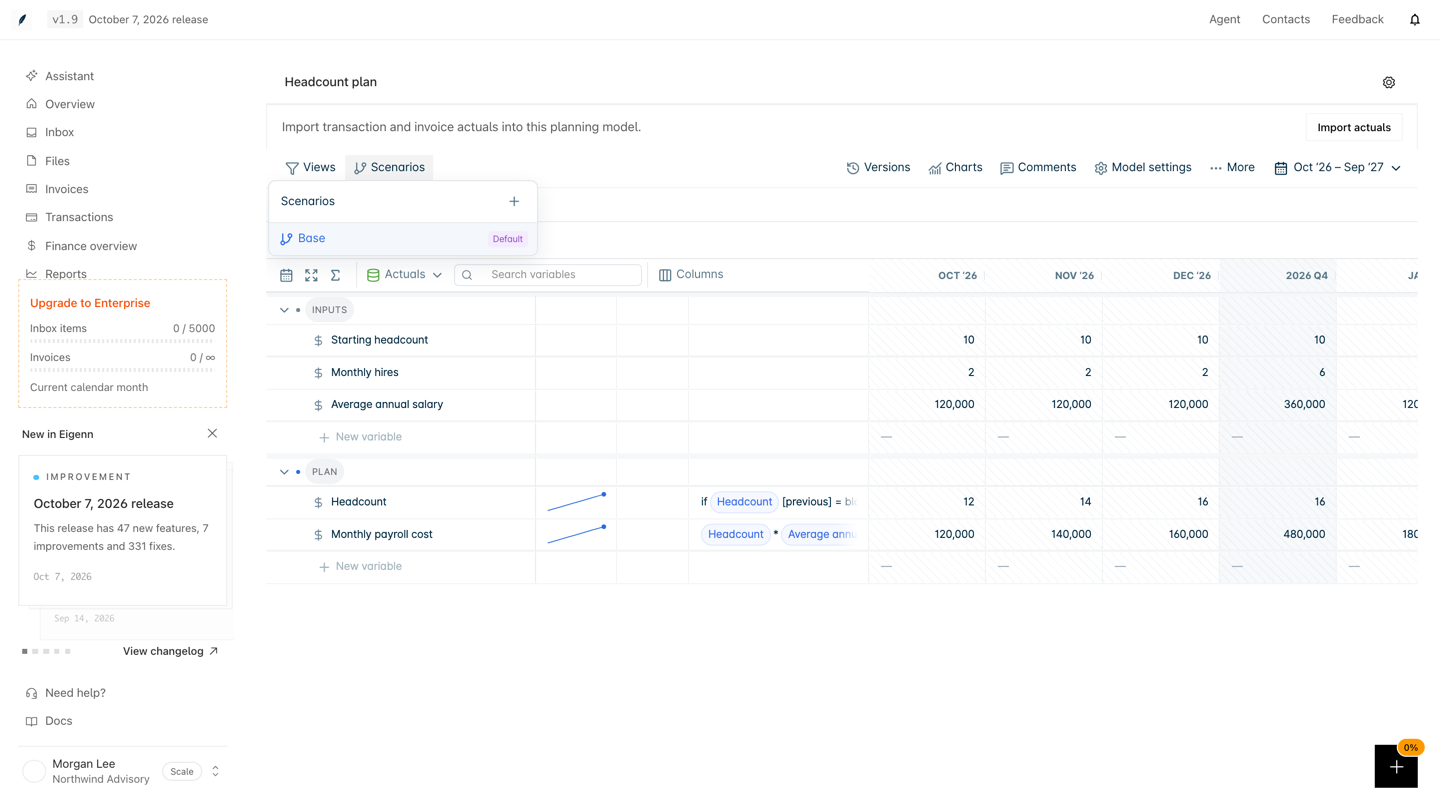
- Select Scenarios in the model toolbar.
- Select the + button beside the menu title. Its accessible name is Create scenario.
- Read the cost note, for example "Adds 2,400 cells to evaluate." Each scenario calculates every row for every period again.
- Enter a Scenario name. Name the business change, not only "Downside".
- Select Save scenario.
The new scenario starts as a copy of the active scenario, with its overrides. The new scenario then becomes active. The grid stops using the active saved view.
| Name rule | Result |
|---|---|
| The name is blank | Save scenario does nothing. |
| The name has more than 80 characters | Eigenn refuses the scenario. |
| Another scenario has the same name, in any letter case | Eigenn shows "A scenario with that name already exists." |
2. Enter overrides
- Open Scenarios and select the scenario name.
- Type a number in an input cell of a forecast period.
- Press Enter. The value becomes an override for that one period.
- To remove an override, clear the cell. The cell then follows the base again.
These rules apply:
- A scenario override must be a number.
- A cell in an actual period does not take an override.
- When the base scenario (marked Default) is active, an edit changes the base model, not a scenario.
Example: Revenue uses Price * Customers. The scenario Price up 10% overrides Price only.
| Variable | Default | Price up 10% |
|---|---|---|
| Price | 100 | 110 (override) |
| Customers | 50 | 50 |
| Revenue | 5,000 | 5,500 |
If you change Customers to 60 in the base, both cases update. Revenue becomes 6,000 and 6,600.
To change many cells in one step, use a shock. Refer to Stress tests and shocks.
3. Switch or delete a scenario
To switch, open Scenarios and select a scenario name.
To delete a scenario:
- Open Scenarios.
- Select the trash icon beside the scenario. Its accessible name is Delete followed by the scenario name.
Eigenn deletes the scenario at once. There is no confirmation step. If you may need the scenario again, save a version first. A version keeps every scenario.
After a delete:
- The base scenario becomes active if the deleted scenario was active.
- The comment threads of the deleted scenario become archived. They no longer show in the Comments panel.
- The base scenario has no trash icon. You cannot delete it.