EIGENN.
docsguidesapichangelogpricingsign in
EIGENN.

Managing models

Use the models home to create, find, organize, copy, export, and remove planning models.

The models home is the start page of scenario planning. It shows every planning model in your workspace. Use it to create a model, find a model, and keep the library in order.

To open the models home, go to Scenario planning in the sidebar. Eigenn opens the Models tab. The other two tabs are Data and Dimensions.
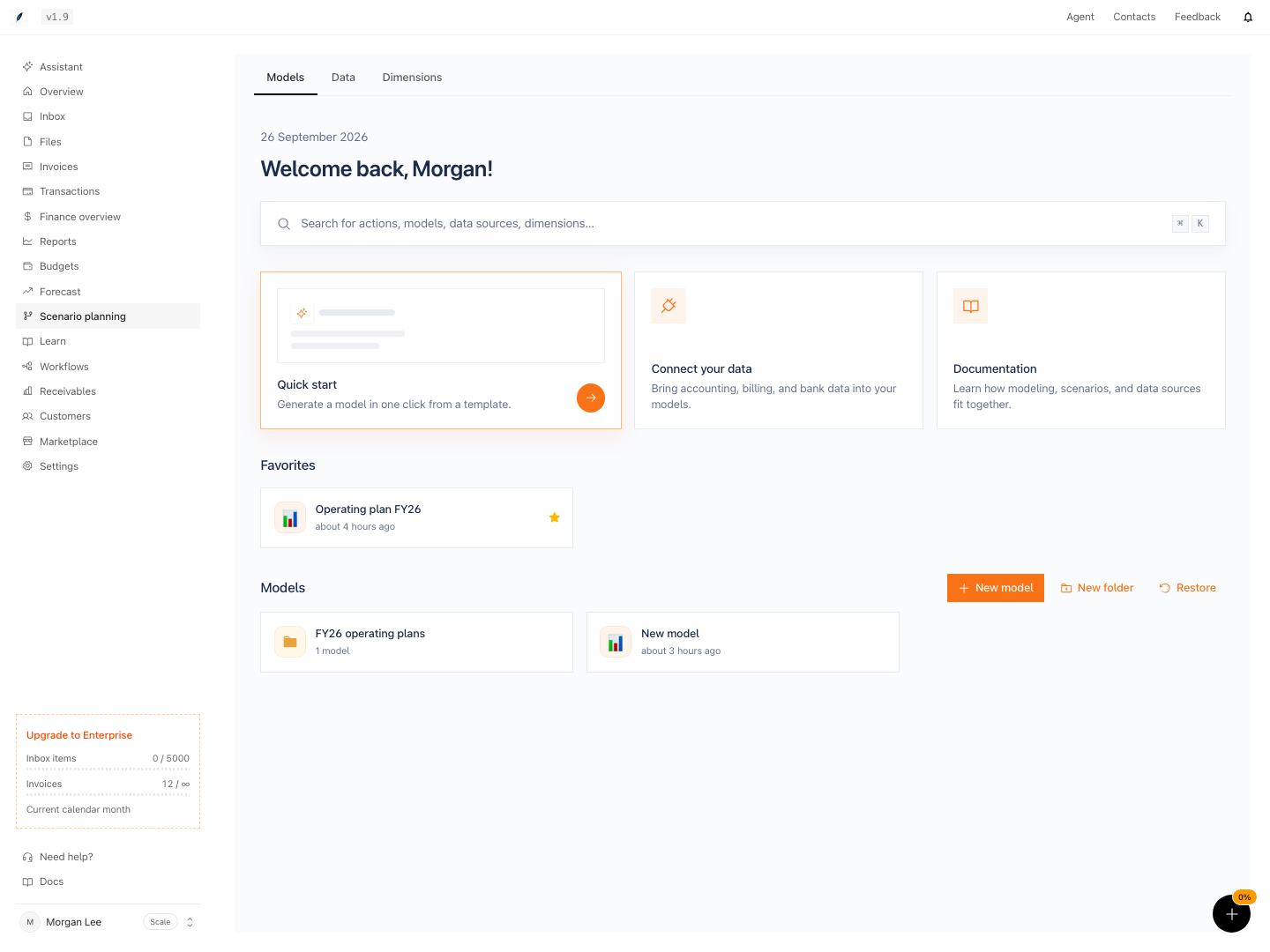
Scenario planning Models tab with the date, a greeting, the search field, the Quick start card, one starred model under Favorites, and a folder and a model under Models next to the New model, New folder, and Restore buttons.

What the models home shows

From the top to the bottom of the page:

  1. The date and a greeting.
  2. A search field for actions, models, folders, and data sources. Press ⌘K on a Mac or Ctrl+K on Windows to open it.
  3. Three cards. Quick start opens the template list. Connect your data opens the Marketplace. Documentation opens these docs.
  4. Favorites, the models that you starred. This section shows only when you have at least one favorite.
  5. Models, with your folders and the models that are not in a folder. The New model, New folder, and Restore buttons are on the right.

Each model card shows the model icon, the model name, and the time of the last change. Click a card to open the model.

Who can change the library

Only a workspace Owner can create, rename, duplicate, move, or trash a model. Only an Owner can create, rename, or delete a folder. A Member or a Viewer opens a model only through a view that an Owner shares.

An Owner or a Member can star a model as a favorite. A Viewer cannot. Favorites are personal, so other members do not see your stars.

Pages in this group

  • The models home and folders: create folders, move models, star favorites, search, and rename.
  • Start from a template: every template that you can create a model from.
  • Duplicate a model: make a separate copy before a large change.
  • Trash, restore, and delete a model: remove a model, get it back, or delete it permanently.
  • Export a model: download model values as a CSV file or an Excel workbook.
  • Model limits and performance: the fixed limits and how calculation works.

Related

  • Variables
  • Scenarios
  • Versions
  • Collaboration

Link a variable to data

Attach one item of a data source to a variable so that its actual periods show source values.

Model limits and performance

The fixed limits of planning models, how Eigenn calculates a model, and how to keep a large model fast.

On this page

What the models home showsWho can change the libraryPages in this groupRelated

Eigenn docs

current product

Overview
Overview
OverviewAccount PreferencesApproval PoliciesAssistant AutomationAssistant Command CenterAssistant Workspace and Saved WorkBank ConnectionsBilling and UsageBudgets and ForecastCommand CenterCustomer FieldsCustomer LifecycleCustomer RecordsCustomersDeveloper PlatformDocument Processing and ExtractionFiles and Document VaultFinancial Analytics and ReportsFinancial OverviewInbox and ApprovalsInvoice InsightsInvoice ProductsInvoicesMarketplace IntegrationsNotifications and BrandingOnboarding and SupportOverviewPlanning Data and DimensionsPlanning Models and FormulasPlanning Time and ActualsPlanning UncertaintyPlanning Versions and CollaborationPlanning Views and ExportsPlans and AdjustmentsReceivablesReceivables AnalyticsReceivables ControlsRolling Budget CloseScenario PlanningSecurity and AccessSettings OverviewStress TestsTeams and OrganizationsTone Profiles and ExperimentsTransaction Categories and RulesTransaction CodingTransactionsWeekly Finance RitualWorkflow ExecutionsWorkflow OutcomesWorkflow PausesWorkflows
OverviewBudget vs. ActualsBuild a Driver-Based Planning ModelBuild and Review a ForecastBuild Your First WorkflowCollaborate on a Planning ModelCompare and Share Planning ScenariosConfigure Approval PoliciesConfigure Assistant OperationsConfigure Customer FieldsConfigure Notifications and BrandingConfigure Planning Time and ActualsConfigure Receivables ControlsConnect Planning Data and ActualsConnect Transaction RecordsConsolidationCreate and Manage CustomersCreate and Send InvoicesCreate Your First Planning ModelDeveloper API SetupFirst Cash ReviewHeadcount PlanningInvoice Collection WorkflowMaintain Transaction RulesManage Security and BillingManage Team AccessManage the Invoice LifecycleMCP WorkflowsMonitor and Recover WorkflowsOrganize and Share DocumentsProcess Inbox ItemsReconcile and Categorize TransactionsRevenue ForecastingReview a Customer Finance RecordReview, Restore, and Export a Planning ModelRun a Finance Operating ReviewRun a Receivables Tone ExperimentRun a Runway Stress TestRun Planning Uncertainty AnalysisRun Your First Command Center ReviewSave and Share Assistant WorkSet Up a WorkspaceTroubleshoot Account AccessWebhook DeliveryWeekly CFO Review
Overview

Concepts

DataDimensionsFormulasScenarios

Variables

VariablesChange an input over timeCreate a variableFormat a variableOrganize variablesTime totalsUse a variable from another modelVariable types

Time

TimeLast actual dateRoll the model forwardTime granularityTime settings

Formulas

FormulasBlanks and helpersCommon formulas: cash and balance sheetCommon formulas: cohortsCommon formulas: currency and multiple entitiesCommon formulas: headcount and payrollCommon formulas: SaaS metricsCommon formulas: seasonalityConditionalsDimension referencesFormula syntaxFunctionsTime referencesTroubleshoot formulasValues with uncertaintyWrite a formula

Charts and Dashboards

Charts and dashboardsCompare scenarios and versionsCreate a chartExport and shareTablesTime aggregation in charts

Dimensions

DimensionsApply a dimensionCreate a dimensionDimension examplesDimension totalsThe Dimensions page

Data

DataChoose cash or accrual for XeroConnect a data sourceLink a variable to dataRefresh and check actualsUse transaction categories as actuals

Data Integrations

Data integrationsBank transactionsCSV importFortnoxQuickBooksStripeXero

Views

ViewsCreate and edit a viewFilter a viewShare a view

Versions

VersionsCompare versionsRestore a versionSave a version

Scenarios

ScenariosCompare scenariosCreate a scenarioPlans and adjustmentsStress tests and shocks

Collaboration

CollaborationComment on a modelShare a model and set accessTeam roles and planning access

Managing Models

Managing modelsDuplicate a modelExport a modelModel limits and performanceStart from a templateThe models home and foldersTrash, restore, and delete a model
OverviewIntegrationsMCPSDKsWebhooks
OverviewAuthenticationBank Accounts APICustomers APIErrorsForecasts and Stress Tests APIInvoice Payments APIInvoices APIPaginationRate LimitsRemote Tracker API StatusTracker Categories APITracker Entries and Timers APITracker Projects APITransactions APIWebhooks API StatusWorkflows API
Overview
Overview