Managing models
Use the models home to create, find, organize, copy, export, and remove planning models.
The models home is the start page of scenario planning. It shows every planning model in your workspace. Use it to create a model, find a model, and keep the library in order.
To open the models home, go to Scenario planning in the sidebar. Eigenn opens the Models tab. The other two tabs are Data and Dimensions.
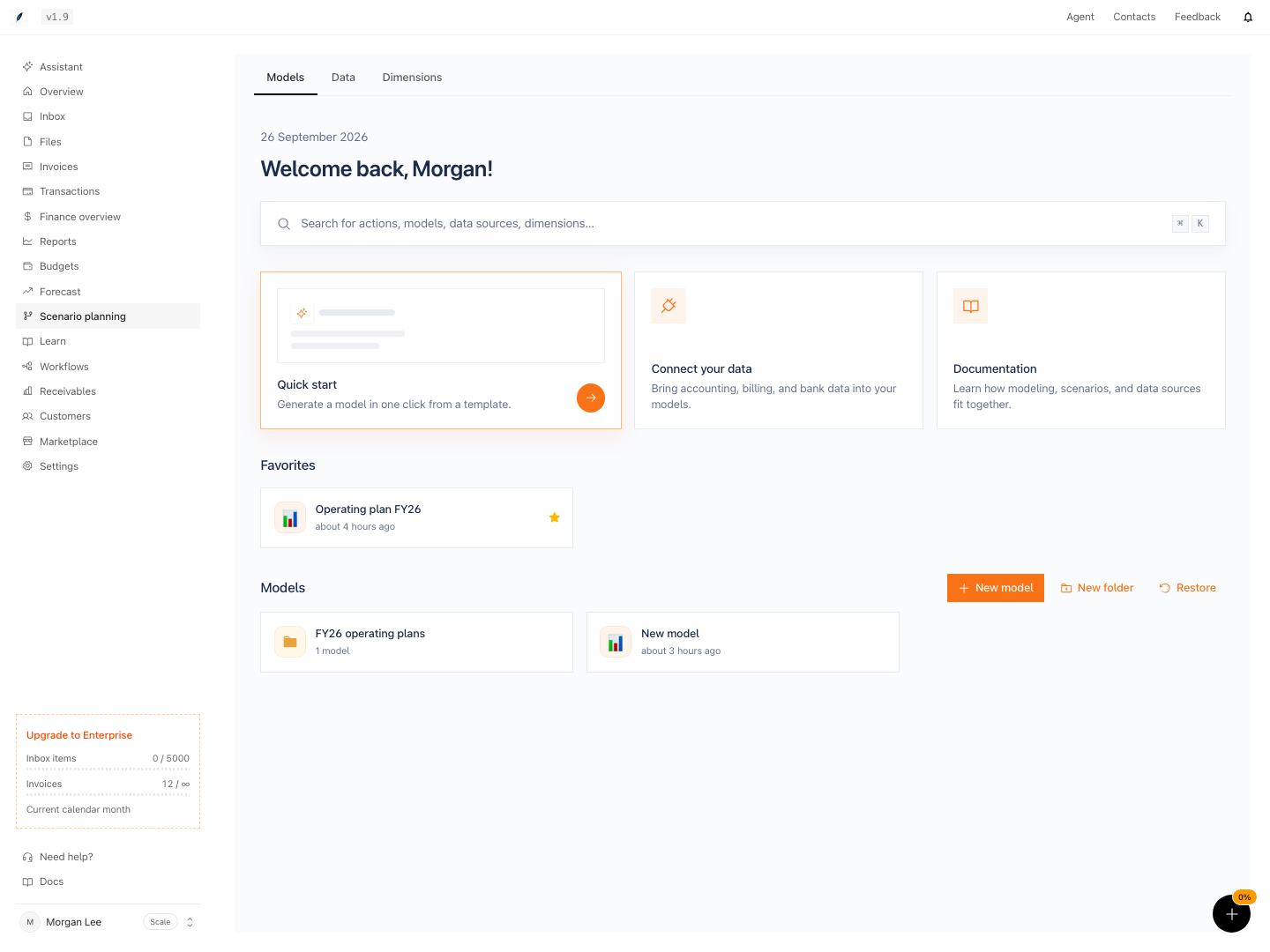
What the models home shows
From the top to the bottom of the page:
- The date and a greeting.
- A search field for actions, models, folders, and data sources. Press ⌘K on a Mac or Ctrl+K on Windows to open it.
- Three cards. Quick start opens the template list. Connect your data opens the Marketplace. Documentation opens these docs.
- Favorites, the models that you starred. This section shows only when you have at least one favorite.
- Models, with your folders and the models that are not in a folder. The New model, New folder, and Restore buttons are on the right.
Each model card shows the model icon, the model name, and the time of the last change. Click a card to open the model.
Who can change the library
Only a workspace Owner can create, rename, duplicate, move, or trash a model. Only an Owner can create, rename, or delete a folder. A Member or a Viewer opens a model only through a view that an Owner shares.
An Owner or a Member can star a model as a favorite. A Viewer cannot. Favorites are personal, so other members do not see your stars.
Pages in this group
- The models home and folders: create folders, move models, star favorites, search, and rename.
- Start from a template: every template that you can create a model from.
- Duplicate a model: make a separate copy before a large change.
- Trash, restore, and delete a model: remove a model, get it back, or delete it permanently.
- Export a model: download model values as a CSV file or an Excel workbook.
- Model limits and performance: the fixed limits and how calculation works.